


In the modern digital workspace, many professionals juggle multiple screens, including laptops, tablets, and smartphones. This has led to the rise of wireless keyboards that can connect to several devices simultaneously. While the convenience of a single input device is clear, users often wonder if the performance and reliability justify the switch.
This guide explores the functionality, setup process, and different types of multi-device peripherals to help you determine if they are the right investment for your workflow.

What Is a Multi-Device Wireless Keyboard?
A multi-device wireless keyboard is a peripheral designed to pair with more than one host device at a time. Unlike traditional models that are tethered to a single computer via a wire or a dedicated USB receiver, these keyboards utilize advanced firmware to manage multiple "channels."
The primary appeal of these wireless keyboards is their ability to reduce desk clutter. Instead of having one keyboard for your PC and another for your iPad, you use a single unit. These devices typically support between three to five simultaneous connections. They are particularly useful for individuals who monitor social media or messaging apps on a mobile device while performing primary work on a desktop.
Multi-device keyboards usually offer two types of wireless connections. The first is a 2.4GHz radio frequency (RF) connection, which requires a small USB dongle. This is often the most stable connection for a primary PC. The second is Bluetooth, which allows the keyboard to connect to mobile devices or laptops that lack standard USB ports. Most multi-device setups allow you to use the dongle for your main computer and Bluetooth for your secondary devices.
How Do Multi-Device Wireless Keyboards Switch Between Devices?
The switching mechanism is the defining feature of a multi-device setup. Manufacturers implement this in different ways to balance speed and ease of use.
Most keyboards feature a row of dedicated keys, often labeled 1, 2, and 3, or colored differently from the rest of the layout. Pressing one of these keys sends a signal to the keyboard’s internal controller to stop communicating with the current device and start communicating with the next. The "handshake" between the keyboard and a secondary device usually takes between one to three seconds, depending on the Bluetooth version used.
Some high-end brands offer software that allows for even more seamless transitions. This technology enables the cursor to move across the edges of different screens. When the mouse moves from a laptop screen to a tablet screen, the keyboard automatically follows the cursor. This eliminates the need to press any physical buttons, though it requires the manufacturer's software to be installed and running on all connected devices.

How to Connect a Multi-Device Keyboard Correctly?
Initial setup is the most common point of frustration for users. Learning how to connect multi-device keyboard hardware properly ensures that your channels remain stable and do not drop connections during use.
Preparing Your Primary Device
Start by connecting your primary computer. If the keyboard comes with a USB receiver, plug it in first. This is usually assigned to "Channel 1" by default. Ensure the keyboard is turned on and that the battery is sufficiently charged. Once the primary connection is established, test the keys to verify that the driver has installed correctly.
Pairing Secondary Bluetooth Channels
To add a second device, you must put the keyboard into "pairing mode." This is typically done by holding down the designated Bluetooth button (like the F2 or F3 key) for three to five seconds until a light begins to flash. On your tablet or smartphone, open the Bluetooth settings and select the keyboard from the list of available devices. Repeat this process for each additional channel you wish to occupy. FCC notes that Bluetooth pairing provides a measure of security, but users should still manage device visibility and connections carefully; see its Bluetooth security tips.
Troubleshooting Common Connection Issues
If you are struggling with how to connect multi-device keyboard channels, ensure that other nearby Bluetooth devices are not interfering. Sometimes, a device may "remember" an old pairing that prevents a new one from succeeding. In such cases, "forgetting" the keyboard in your device settings and performing a factory reset on the keyboard can resolve the issue. Always ensure your host device's Bluetooth drivers are up to date for the best performance. FCC explains that unwanted radio frequency signals can disrupt device performance; see its guide to radio frequency interference.
Are Wireless Keyboards Fast Enough for Daily Productivity?
Performance concerns often deter users from choosing wireless options. However, for the vast majority of office and creative tasks, the difference between wired and wireless is negligible.
Latency in Bluetooth vs. 2.4GHz Wireless
Latency is the delay between pressing a key and the character appearing on the screen. Bluetooth latency is typically around 10ms to 20ms, which is imperceptible during typing but may be noticed by competitive gamers. The 2.4GHz dongle connection often brings this down to 1ms, making it as fast as a wired connection. For standard writing, data entry, and coding, both methods are more than sufficient.
Battery Management and Longevity
Modern wireless keyboards are incredibly power-efficient. Some use replaceable AA or AAA batteries that can last up to two years, while others feature rechargeable internal batteries that last for weeks on a single charge. Many devices include an "auto-sleep" mode that turns off the connection after a few minutes of inactivity to conserve power, waking up almost instantly when a key is pressed.
Should You Choose a Bluetooth Mechanical Keyboard or Standard Wireless Model?
The typing experience varies significantly between mechanical and membrane models. Your choice depends on how much you value tactile feedback versus a slim aesthetic.
A bluetooth mechanical keyboard uses individual physical switches under every key. This provides a "clicky" or "tactile" feel that many find more comfortable for long-form writing. Because these switches have a longer travel distance, they can reduce bottoming out, which may help with finger fatigue. Additionally, these keyboards are often more durable, with switches rated for tens of millions of keystrokes.
Standard wireless models often use membrane or scissor switches. These are much thinner and quieter. If you travel frequently or work in a coffee shop, the portability of a slim membrane keyboard might outweigh the tactile benefits of a bluetooth mechanical keyboard. Membrane models are also generally more resistant to spills because they lack the deep gaps found between mechanical keys.
When Is a Silent Wireless Keyboard the Better Choice?
Noise levels are a critical consideration for shared environments. If you work in an open-plan office or a library, the sound of your typing can be a distraction to others.
Managing Noise in Shared Workspaces
A silent wireless keyboard is specifically engineered with dampeners to reduce the "clack" of keys. In membrane models, this is achieved through rubber domes. In mechanical models, specialized "silent" switches (like Cherry MX Silent Red) use internal paddings to soften the impact of the plastic parts. Using a silent wireless keyboard ensures that you can type at high speeds during meetings or late at night without disturbing your colleagues or family members.
Tactile Feel vs. Audible Feedback
The challenge with silent models is that they can sometimes feel "mushy." Without the audible click, some typists find it harder to know if a keypress has been registered. However, modern high-quality silent models have improved the tactile bump, allowing you to feel the actuation without the loud noise. This balance is ideal for professional environments where etiquette is as important as performance.
What Are the Biggest Advantages and Drawbacks?
Like any tool, multi-device keyboards come with trade-offs. Weighing these points will help you decide if the investment fits your specific desk setup.
The most significant advantage is the "one-desk" philosophy. You save physical space and money by not purchasing multiple peripherals. It also allows for a more ergonomic setup, as you can position your single keyboard in the optimal spot for your posture, rather than reaching for different devices placed at awkward angles. OSHA recommends workstation setups that keep wrists and hands in line with forearms and provide adequate room for keyboard and mouse use; see its computer workstation guidance.
The main drawback is that you are reliant on wireless signals. In rare cases, electronic interference from routers or microwaves can cause a brief lag. Furthermore, multi-device models are generally more expensive than basic single-connection keyboards. If you only ever use one computer, paying the premium for multi-device functionality may not offer a high return on investment.
Who Should Buy a Mechanical Keyboard Wireless Setup?
Determining if a mechanical keyboard wireless model is right for you often comes down to your primary profession and your tolerance for hardware maintenance.
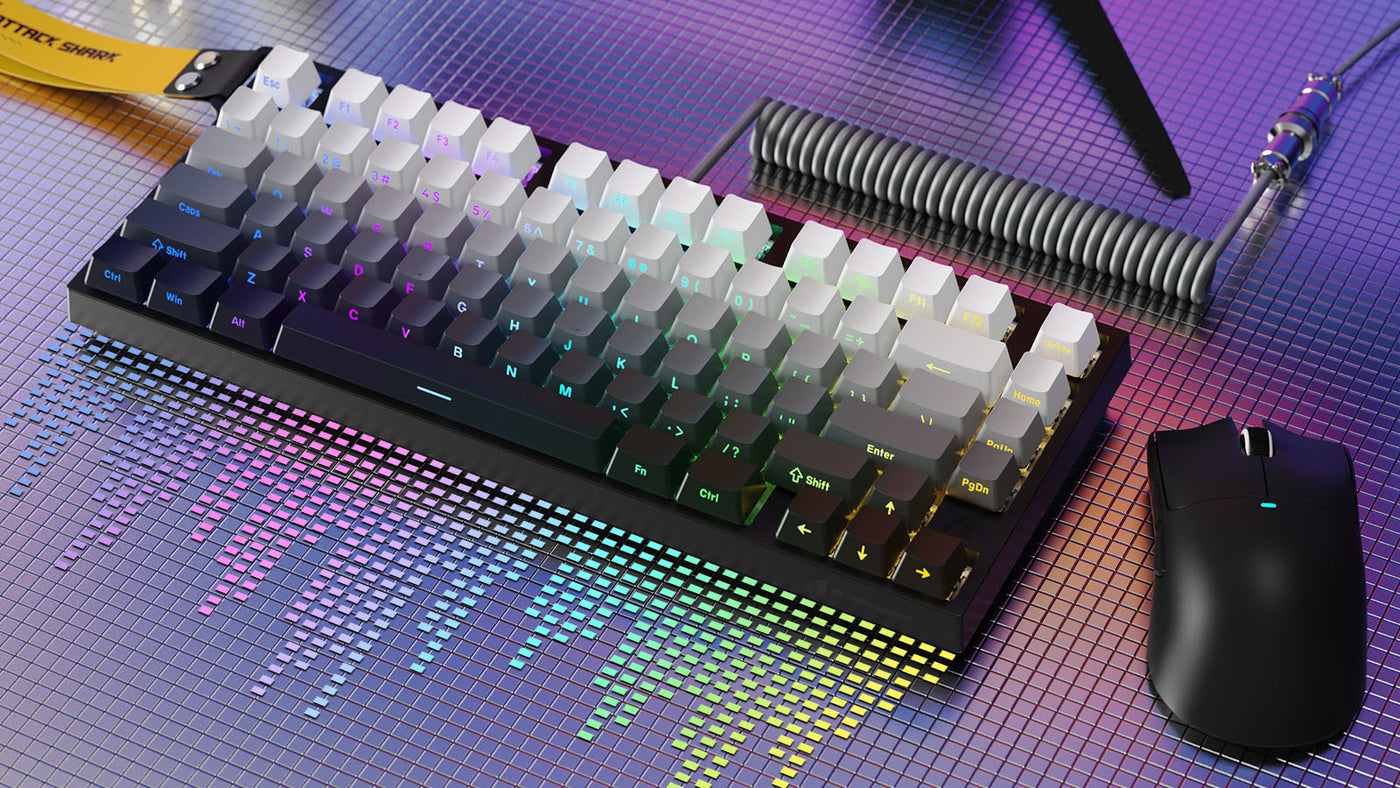
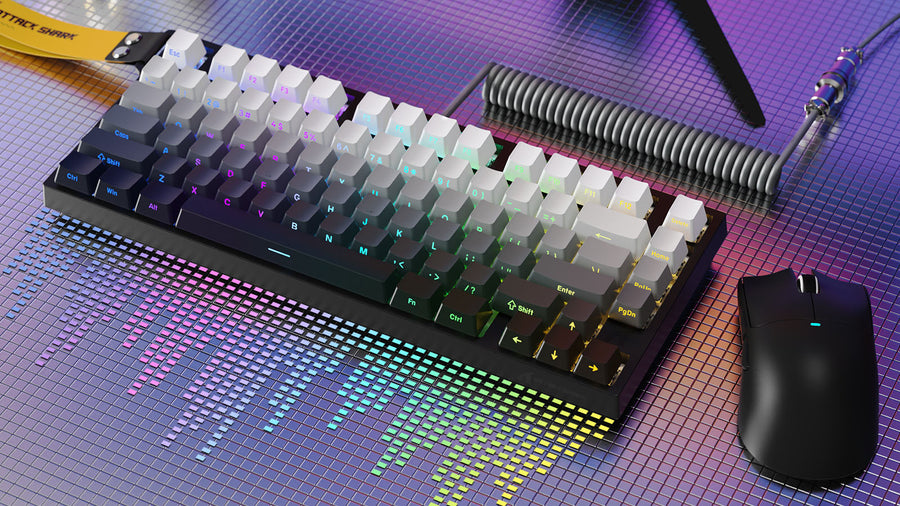
Gamers often prefer a mechanical keyboard wireless setup because it provides the precision needed for gaming while allowing them to quickly switch to a phone to reply to a chat message. The lack of a wire provides more room for large mouse movements, which is critical in fast-paced titles. Many of these models also offer customizable RGB lighting and macro keys that can be programmed for specific software.
For those who type thousands of words a day, the durability of a mechanical build is essential. The ability to swap out keycaps or even the switches themselves means the keyboard can be repaired rather than replaced if one part fails. A mechanical keyboard wireless unit acts as a long-term professional tool that grows with the user’s needs, offering both high-performance connectivity and a premium typing feel.
Conclusion: Choose Multi-Device Wireless Keyboards for Cleaner Cross-Platform Workflows
Multi-device keyboards offer a streamlined solution for those working across various platforms. While they may have a slight learning curve during the initial pairing process, the ability to switch devices with a single tap can significantly enhance productivity. By choosing between a mechanical keyboard wireless model for feedback or a silent version for shared offices, you can tailor your setup to your specific needs. Ultimately, these tools provide a cleaner, more efficient desk environment for the modern multitasker.
FAQs
Can multi-device wireless keyboards connect to different operating systems?
Yes, most multi-device keyboards are compatible with Windows, macOS, Android, and iOS. Many models even have dual-labeled keycaps (e.g., both "Alt" and "Cmd" symbols) to ensure that the layout remains intuitive regardless of which operating system you are currently using.
Is it hard to learn how to connect multi-device keyboard channels?
No, the process is generally straightforward. Most keyboards use a "long-press to pair" and "short-press to switch" logic. Once the initial pairing is completed, the devices will remember the keyboard and reconnect automatically whenever you switch back to that specific channel.
Will a bluetooth mechanical keyboard work for gaming?
Yes, it will work for most casual and moderately competitive gaming. However, for professional-level esports where every millisecond counts, using the 2.4GHz USB dongle connection is recommended over Bluetooth to ensure the lowest possible input lag and a more stable polling rate.
Are silent wireless keyboards completely noiseless?
No, they are not completely silent, but they are significantly quieter than standard models. They are designed to dampen the sharpest frequencies of a keystroke, turning a loud "click" into a soft "thud." This makes them much less intrusive in quiet environments like libraries or shared home offices.
Can I use a multi-device keyboard with a smart TV?
Yes, provided your smart TV supports Bluetooth HID (Human Interface Device) profiles. Most modern smart TVs from major brands allow you to pair a wireless keyboard, making it much easier to search for content or enter login credentials than using a standard TV remote.