


A clean gaming setup is not only about RGB lights, monitors, and keyboards. The cables under your desk decide whether the whole space feels organized or messy. Power cords, monitor cables, headset wires, and keyboard cables can quickly turn into clutter. This guide explains how to plan clean gaming setup cables, manage the underside of your desk, and use smart keyboard accessories for a neater look.

Why Is Under Desk Cable Management For Gaming Important?
Good cable management makes your gaming setup easier to use, clean, and upgrade. When cables hang loosely behind your desk, they collect dust, get tangled, and make it harder to move your keyboard, mouse, monitor, or PC.
For gaming, cable clutter can also affect comfort. A loose mouse cable may drag across the desk. A monitor power cable may hang in view. A headset wire may catch on the chair arm. These small problems make the setup feel less polished even if the hardware is expensive.
Improve Safety And Airflow
Under-desk clutter can create trip hazards and make power strips harder to reach. If too many cables are twisted together, it also becomes harder to check plugs or unplug devices safely. The OSHA computer workstation safety checklist recommends keeping cables secured and away from walkways to prevent tripping and electrical hazards.
A cleaner layout improves airflow around your PC and power adapters. It also makes dusting easier, which matters if your gaming room gets warm.
Make Future Upgrades Easier
A good under desk cable management gaming system should not be permanent. You may upgrade your monitor, change your keyboard, move your PC, or add speakers later.
If your cables are grouped and labeled, you can replace one device without tearing apart the whole setup.

Plan Your Clean Gaming Setup Cables First
Before buying trays, clips, sleeves, or a coiled keyboard cable, plan what actually needs to run across or under your desk. Many setups look messy because cables are hidden randomly instead of routed intentionally.
Start by unplugging unnecessary cables. Old charging cords, unused USB cables, and extra adapters often stay under desks for months. Remove anything that does not serve your current setup.
Map Your Cable Zones
Divide your desk into simple zones. The back center is usually best for monitor cables. One rear corner can handle power cables. The top desk area should keep only the cables you need to touch, such as keyboard, mouse, controller, or headset connections.
A clean cable plan usually separates:
- Power cables
- Display cables
- USB and data cables
- Audio cables
- Keyboard and mouse cables
- Charging cables
This prevents one tangled bundle from controlling everything under the desk.
Decide What Should Stay Visible
Not every cable needs to disappear. Some cables are part of the setup's look. A neat coiled cable on the desk can look intentional, especially with a mechanical keyboard.
The goal is not zero cables. The goal is controlled cables that do not distract from the setup.
Hide Power Strips And Bulky Cords Under The Desk
Power strips create the biggest visual mess because they connect several thick cords in one place. If the power strip sits on the floor, every cable naturally drops downward and becomes visible.
Mounting the power strip under the desk is one of the most effective upgrades for under desk cable management gaming setups. It keeps bulky plugs off the floor and shortens the visible cable path.
Use A Cable Tray Or Under-Desk Rack
A metal cable tray works well for power strips, adapters, and extra cable length. Attach it near the back edge of the desk so cords can drop directly into it.
If you rent or do not want to drill, use strong adhesive mounts only if the desk surface supports them. Heavy power bricks may pull weak adhesive loose over time.
Coil Extra Length Carefully
Do not wrap power cables too tightly or bend them sharply. Loose loops are safer and easier to adjust.
Use reusable Velcro ties instead of permanent zip ties when possible. Velcro lets you make changes without cutting everything apart.
Keep Power And Data Separate
Try to route power cables on one side and USB or display cables on another. This makes troubleshooting easier and keeps the layout cleaner.
It also helps you quickly identify which cable belongs to which device.
Upgrade Your Setup With A Coiled Keyboard Cable
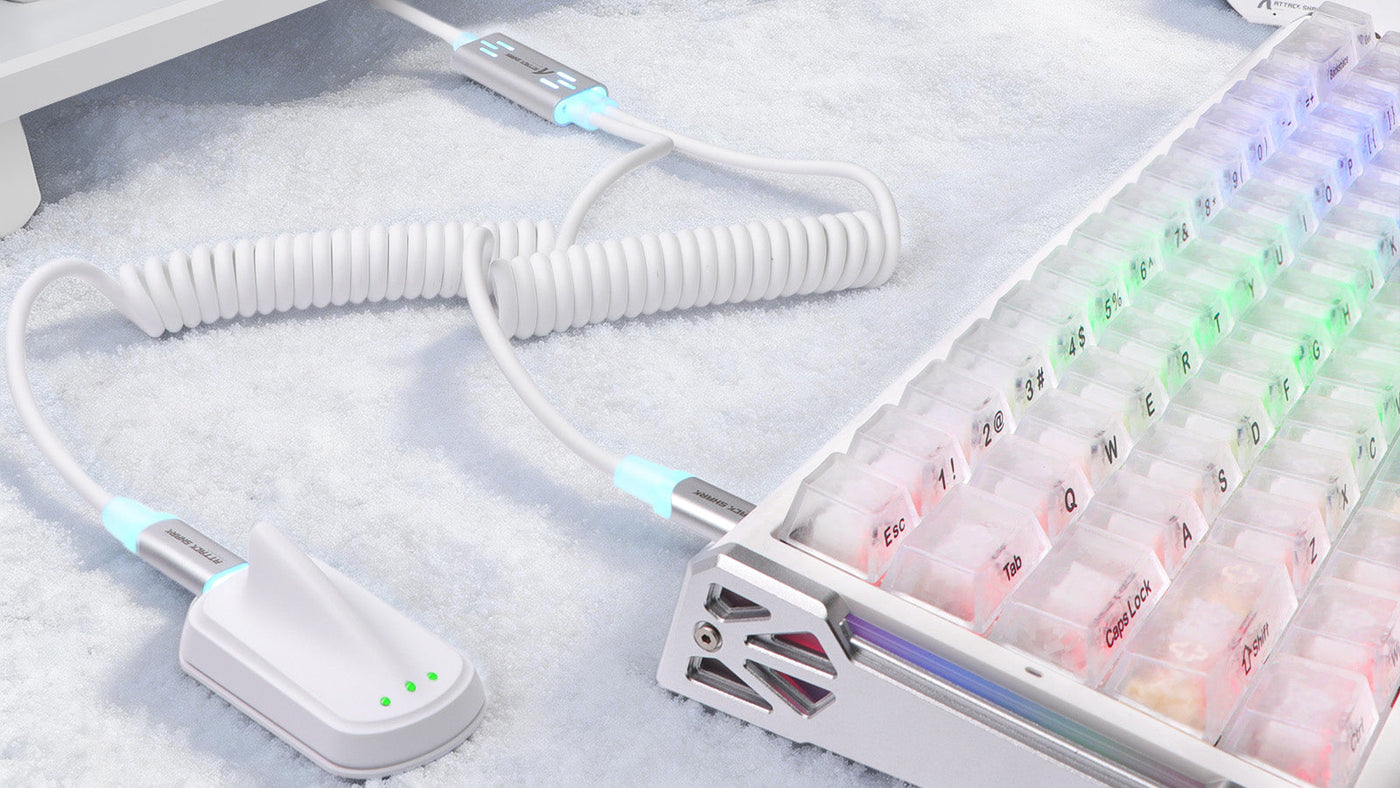
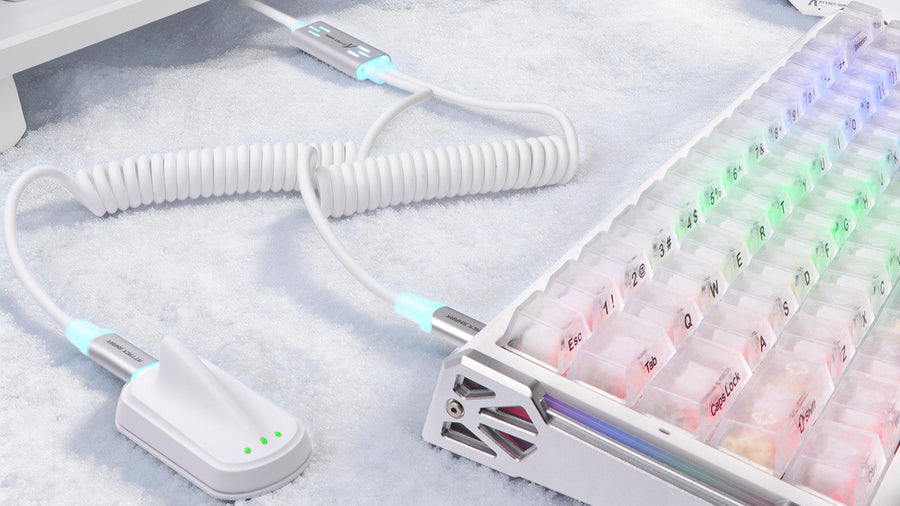
A coiled keyboard cable is one of the few cables that can improve the look of your desk instead of being hidden. It is especially popular with mechanical keyboards because it adds structure, color, and a custom feel.
A coiled cable usually has a spring-like coil near the keyboard and a straight section that connects to the PC, hub, or aviator-style connector. The coil keeps the cable from spreading loosely across the desk.
Why Use A Coiled Cable?
A coiled cable can make the keyboard area look more organized. Instead of a long USB cable bending in random directions, the coil creates a controlled shape.
It also works well when your keyboard is centered in front of a monitor. The cable can run neatly toward the back of the desk without looking messy.
Check Compatibility Before Buying
Before choosing a coiled keyboard cable, check your keyboard connector type. Many modern keyboards use USB-C, while older models may use Micro-USB or Mini-USB.
Also check cable length. A coiled section looks nice, but the total cable must still reach your PC or USB hub without tension.
Avoid Over-Stretching The Coil
A coiled cable is not meant to be pulled flat. If your keyboard is far from the PC, choose a longer cable rather than stretching the coil.
Over-stretching can make the coil lose shape and reduce the clean look you wanted.
Use The Right Keyboard Accessories For A Neat Look
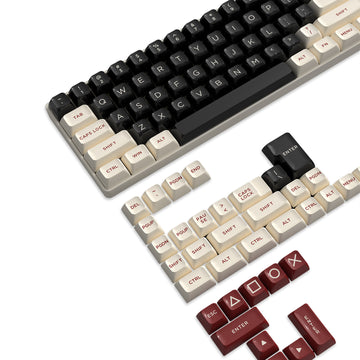
The right keyboard accessories can help make the whole desk feel more organized. They do not need to be expensive, but they should solve real cable and layout problems.
Desk Mats
A large keyboard cables can quickly turn into clutter. This guide explains how to plan clean gaming setup cables, manage the underside of your desk, and use smart keyboard accessories for a neater look.
Why Is Under Desk Cable Management For Gaming Important?
Good cable management makes your gaming setup easier to use, clean, and upgrade. When cables hang loosely behind your desk, they collect dust, get tangled, and make it harder to move your keyboard, mouse, monitor, or PC.
For gaming, cable clutter can also affect comfort. A loose mouse cable may drag across the desk. A monitor power cable may hang in view. A headset wire may catch on the chair arm. These small problems make the setup feel less polished even if the hardware is expensive.
Improve Safety And Airflow
Under-desk clutter can create trip hazards and make power strips harder to reach. If too many cables are twisted together, it also becomes harder to check plugs or unplug devices safely. The OSHA computer workstation safety checklist recommends keeping cables secured and away from walkways to prevent tripping and electrical hazards.
A cleaner layout improves airflow around your PC and power adapters. It also makes dusting easier, which matters if your gaming room gets warm.
Make Future Upgrades Easier
A good under desk cable management gaming system should not be permanent. You may upgrade your monitor, change your keyboard, move your PC, or add speakers later.
If your cables are grouped and labeled, you can replace one device without tearing apart the whole setup.
Plan Your Clean Gaming Setup Cables First
Before buying trays, clips, sleeves, or a coiled keyboard cable, plan what actually needs to run across or under your desk. Many setups look messy because cables are hidden randomly instead of routed intentionally.
Start by unplugging unnecessary cables. Old charging cords, unused USB cables, and extra adapters often stay under desks for months. Remove anything that does not serve your current setup.
Map Your Cable Zones
Divide your desk into simple zones. The back center is usually best for monitor cables. One rear corner can handle power cables. The top desk area should keep only the cables you need to touch, such as keyboard, mouse, controller, or headset connections.
A clean cable plan usually separates:
- Power cables
- Display cables
- USB and data cables
- Audio cables
- Keyboard and mouse cables
- Charging cables
This prevents one tangled bundle from controlling everything under the desk.
Decide What Should Stay Visible
Not every cable needs to disappear. Some cables are part of the setup's look. A neat coiled cable on the desk can look intentional, especially with a mechanical keyboard.
The goal is not zero cables. The goal is controlled cables that do not distract from the setup.
Hide Power Strips And Bulky Cords Under The Desk
Power strips create the biggest visual mess because they connect several thick cords in one place. If the power strip sits on the floor, every cable naturally drops downward and becomes visible.
Mounting the power strip under the desk is one of the most effective upgrades for under desk cable management gaming setups. It keeps bulky plugs off the floor and shortens the visible cable path.
Use A Cable Tray Or Under-Desk Rack
A metal cable tray works well for power strips, adapters, and extra cable length. Attach it near the back edge of the desk so cords can drop directly into it.
If you rent or do not want to drill, use strong adhesive mounts only if the desk surface supports them. Heavy power bricks may pull weak adhesive loose over time.
Coil Extra Length Carefully
Do not wrap power cables too tightly or bend them sharply. Loose loops are safer and easier to adjust.
Use reusable Velcro ties instead of permanent zip ties when possible. Velcro lets you make changes without cutting everything apart.
Keep Power And Data Separate
Try to route power cables on one side and USB or display cables on another. This makes troubleshooting easier and keeps the layout cleaner.
It also helps you quickly identify which cable belongs to which device.
Upgrade Your Setup With A Coiled Keyboard Cable
A coiled keyboard cable is one of the few cables that can improve the look of your desk instead of being hidden. It is especially popular with mechanical keyboards because it adds structure, color, and a custom feel.
A coiled cable usually has a spring-like coil near the keyboard and a straight section that connects to the PC, hub, or aviator-style connector. The coil keeps the cable from spreading loosely across the desk.
Why Use A Coiled Cable?
A coiled cable can make the keyboard area look more organized. Instead of a long USB cable bending in random directions, the coil creates a controlled shape.
It also works well when your keyboard is centered in front of a monitor. The cable can run neatly toward the back of the desk without looking messy.
Check Compatibility Before Buying
Before choosing a coiled keyboard cable, check your keyboard connector type. Many modern keyboards use USB-C, while older models may use Micro-USB or Mini-USB.
Also check cable length. A coiled section looks nice, but the total cable must still reach your PC or USB hub without tension.
Avoid Over-Stretching The Coil
A coiled cable is not meant to be pulled flat. If your keyboard is far from the PC, choose a longer cable rather than stretching the coil.
Over-stretching can make the coil lose shape and reduce the clean look you wanted.
Use The Right Keyboard Accessories For A Neat Look
The right keyboard accessories can help make the whole desk feel more organized. They do not need to be expensive, but they should solve real cable and layout problems.
Desk Mats
A large desk mat helps define the keyboard and mouse area. It also hides small cable movement and makes the surface look more unified.
For gaming, choose a mat large enough for your mouse movement. A mat that is too small can make the setup feel cramped.
Cable Clips
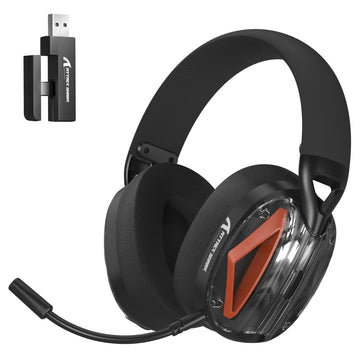
Cable clips are useful for routing keyboard, mouse, headset, and controller cables along the back edge of the desk. They prevent cables from falling behind the desk when unplugged.
Use clips only where you need access. Too many clips can make the setup harder to change.
USB Hubs
A USB hub can reduce long cable runs if your PC sits far from the keyboard. Place the hub under the desk or behind the monitor, then connect short device cables to it.
This is useful for keyboards, microphones, webcams, controllers, and charging cables.
Mouse Bungees
For wired gaming mice, a mouse bungee can keep the cable lifted and reduce drag. It is simple, but it can make wired mouse movement feel cleaner.
This is one of the most practical keyboard accessories adjacent tools for gamers who still prefer wired peripherals.
Secure Cables To Monitor Arms And Desk Legs
Monitor cables often create the most visible clutter because they hang from the screen and drop behind the desk. If you use a monitor arm, you can route cables along the arm so they move naturally with the display.
Most monitor arms include cable clips or channels. Use them to guide power, DisplayPort, HDMI, and USB cables toward the back of the desk.
Leave Enough Slack
Do not pull monitor cables tight. If you move or tilt the screen, tight cables can strain ports or disconnect.
Leave a small loop near the monitor joint so the cable can move safely.
Route Along Desk Legs
If your PC sits on the floor, route cables along the nearest desk leg instead of letting them hang in the middle. Adhesive clips or Velcro wraps can keep cables close to the leg.
This makes the setup look cleaner from the front and side.
Hide The Final Drop
Even with good routing, one cable bundle usually needs to travel from the desk to the wall outlet or PC. Place this final drop behind a desk leg, PC tower, or cable raceway.
The less visible this drop is, the cleaner the whole setup feels.
Build A Simple Step-By-Step Cable Management System
A clean setup is easier to build when you follow an order. Randomly tying cables together often creates a bundle that looks neat for one day but becomes frustrating later.
Step 1: Remove Everything You Do Not Use
Unplug extra chargers, old USB cables, unused HDMI cords, and accessories that are no longer part of the setup.
Fewer cables are easier to manage.
Step 2: Mount The Power Strip
Place the power strip under the desk or inside a cable tray. Connect only essential devices first, such as the PC, monitors, speakers, and charger.
Step 3: Route Large Cables First
Handle power, monitor, and PC cables before smaller accessories. These thick cables create the main structure.
Step 4: Add Desk-Level Cables
Route keyboard, mouse, microphone, headset, and controller cables last. This is where a coiled cable or USB hub can make the top of the desk look cleaner.
Step 5: Test Before Tightening
Move your chair, adjust monitor arms, slide the keyboard, and check cable tension. Only tighten ties after confirming everything works comfortably.
Common Cable Management Mistakes To Avoid
A neat gaming setup should still be easy to use. Over-cleaning can create new problems if cables become too tight or hard to access.
One common mistake is hiding every cable so completely that unplugging one device becomes difficult. Leave enough access for devices you change often, such as keyboards, controllers, microphones, and chargers.
Another mistake is using zip ties everywhere. Zip ties look clean, but they are inconvenient when you upgrade hardware. Reusable ties are better for a setup that changes over time.
Also avoid placing power bricks where heat cannot escape. Large adapters should have some airflow and should not be buried under fabric, rugs, or soft padding.
Good cable management is clean, safe, and flexible.
Conclusion: A Tidy Desk Starts With Intentional Cable Routing
A clean gaming setup starts under the desk. Hide the power strip, route monitor and PC cables first, then organize visible desk cables with clips, hubs, and a neat keyboard cable. A coiled keyboard cable can make the desktop look intentional, while smart under-desk routing keeps the rest out of sight. The result is a setup that looks better and works better.
FAQs
What Is The Best Way To Start Under Desk Cable Management For Gaming?
Start by removing unused cables, then mount the power strip under the desk or in a cable tray. Route thick power and monitor cables first, then organize smaller USB, keyboard, mouse, and headset cables. This creates a cleaner structure and makes future upgrades easier.
Are Coiled Keyboard Cables Only For Looks?
No. A coiled keyboard cable improves appearance, but it can also keep the keyboard cable more controlled on the desk. It prevents long USB cables from spreading randomly across the surface. However, it should not be stretched tightly or used if it cannot comfortably reach your setup.
What Accessories Help With Clean Gaming Setup Cables?
Useful keyboard accessories and cable tools include desk mats, cable clips, Velcro ties, USB hubs, mouse bungees, cable trays, and monitor arm cable channels. The best accessories are the ones that reduce clutter without making your devices harder to move or unplug.
How Do I Hide Cables If My PC Is On The Floor?
Route cables down the nearest desk leg and secure them with Velcro wraps or adhesive clips. Keep the final cable drop behind the desk leg, PC case, or cable raceway. Leave enough slack so the desk, monitor, and PC ports are not under tension.
How Often Should I Reorganize My Gaming Setup Cables?
Check your cable layout whenever you add a monitor, keyboard, microphone, controller, lighting, or charging dock. For most setups, a quick cleanup every few months is enough. Dust under the desk, remove unused cables, and replace loose ties before the clutter builds again.