


The Intersection of Ultra-High Polling and Variable Refresh Rates
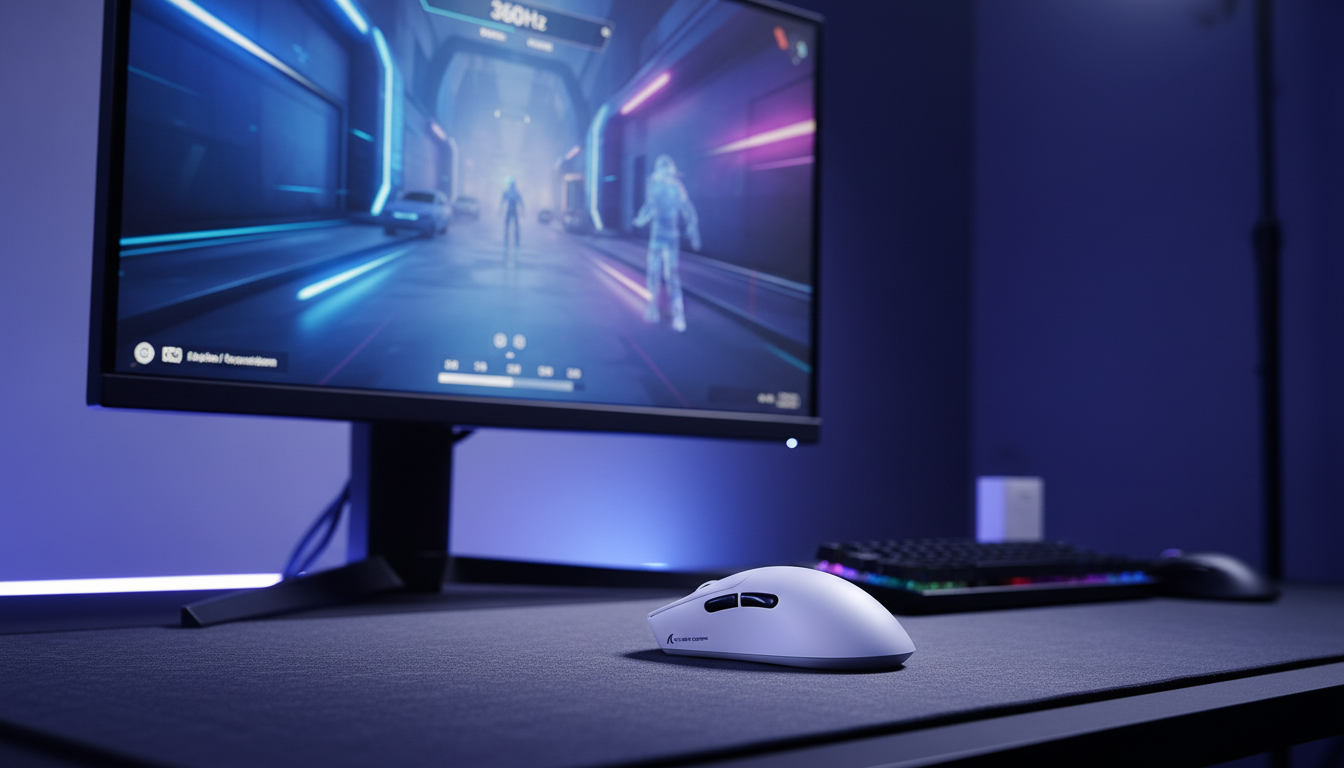
In the pursuit of the ultimate competitive edge, we have seen a rapid convergence of two high-bandwidth technologies: 8000Hz (8K) mouse polling and Variable Refresh Rate (VRR) displays, such as G-Sync and FreeSync. For years, the gold standard for gaming peripherals was 1000Hz, providing a 1ms delay between the physical movement and the computer receiving that data. However, as 360Hz and 540Hz monitors become the new baseline for professional esports, the industry has pushed toward 8000Hz to eliminate micro-stutter and align input data with the display's increasingly narrow frame windows.
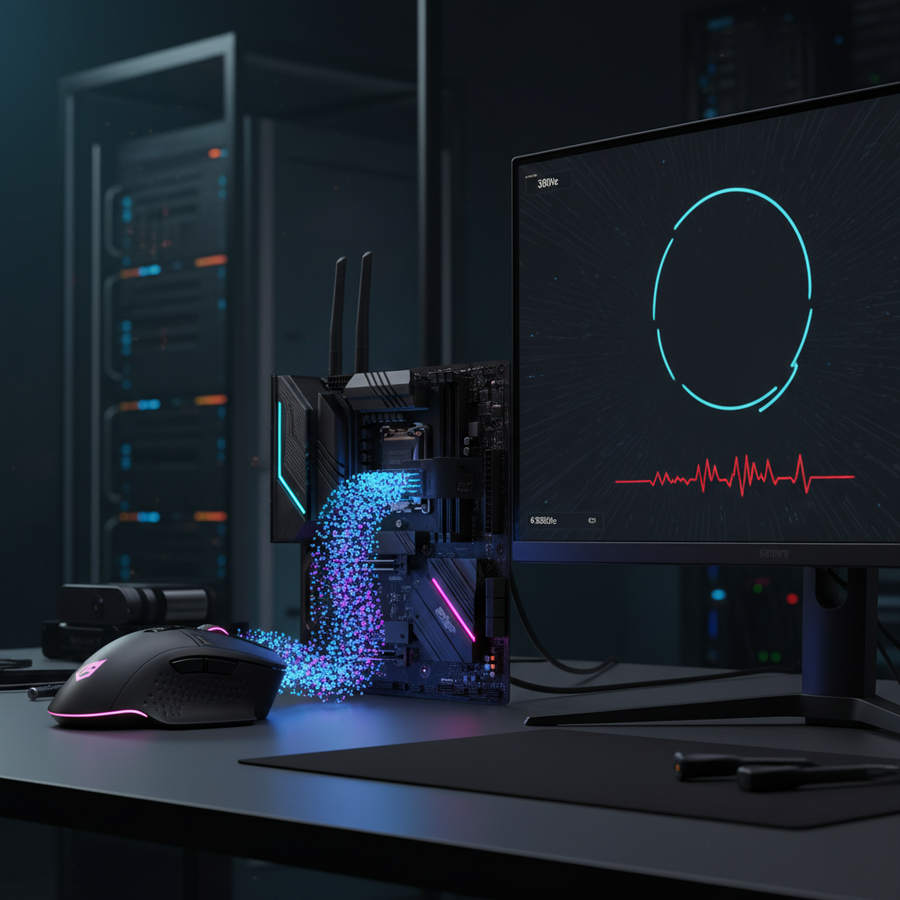
A common question we encounter in our support channels and community discussions is whether enabling G-Sync negatively impacts the performance of an 8K mouse. The fear is often rooted in "input desync"—the idea that if the display is constantly changing its refresh rate to match the GPU, and the mouse is firing off data 8,000 times per second, the two systems might clash, leading to stutter or "mushy" tracking.
Through our analysis of system latency and interrupt scheduling, we have found that while these systems are fundamentally asynchronous, their interaction is heavily dependent on CPU overhead and frame-pacing stability. According to the Global Gaming Peripherals Industry Whitepaper (2026), the synergy between high-frequency inputs and adaptive displays is the next frontier of "motion-to-photon" optimization.

Understanding the Math: 8K Polling and Latency
To understand the interaction, we must first look at the raw specifications. An 8000Hz polling rate means the mouse sends a packet to the PC every 0.125ms. This is a significant jump from the 1.0ms interval of a standard 1000Hz mouse.
When we factor in technologies like Motion Sync—which aligns sensor data with the USB polling event—the latency profile changes. At 1000Hz, Motion Sync typically adds ~0.5ms of delay to ensure the most recent data is sent. At 8000Hz, this delay drops to a negligible ~0.0625ms. This reduction in "input granularity" is what provides the perceived smoothness on high-refresh-rate monitors.
| Polling Rate | Interval (Time between packets) | Motion Sync Latency (Estimated) | CPU Interrupt Frequency |
|---|---|---|---|
| 1000Hz | 1.0ms | ~0.5ms | Baseline |
| 2000Hz | 0.5ms | ~0.25ms | 2x Baseline |
| 4000Hz | 0.25ms | ~0.125ms | 4x Baseline |
| 8000Hz | 0.125ms | ~0.0625ms | 8x Baseline |
Logic Summary: These values are derived from the fundamental frequency-to-time formula ($1 / \text{Frequency} = \text{Period}$). The Motion Sync estimate is based on the heuristic that it adds half a polling interval of delay to synchronize sensor and USB timing.
The G-Sync Interaction: Protocol vs. Processing
There is a persistent myth that 8K polling "breaks" the G-Sync protocol. In reality, G-Sync and mouse polling operate on two different planes. G-Sync is a communication protocol between the GPU and the display, ensuring the monitor only refreshes when a new frame is ready. Mouse polling is an Interrupt Request (IRQ) from the USB controller to the CPU.
The conflict arises not from a protocol flaw, but from CPU resource contention.
When you move an 8K mouse, the CPU must stop what it is doing 8,000 times every second to process those interrupts. In CPU-bound games, this can consume an additional 5-10% of CPU overhead. If your frame rate is fluctuating (which is why you use G-Sync in the first place), the CPU is already under stress trying to manage the game engine and the GPU driver.
If the CPU becomes saturated, it may delay the processing of some mouse packets or, conversely, delay the rendering of a frame to handle the mouse interrupts. This results in "polling interval inconsistency." You won't necessarily see a visual glitch in the G-Sync behavior, but you will perceive a "mushy" or "floaty" feel in your aim because the timing of the input data is no longer perfectly consistent.
Sensor Saturation and Movement Speed
A technical nuance that many gamers overlook is the relationship between DPI, IPS (Inches Per Second), and polling saturation. To actually "fill" the 8000Hz pipe with unique data points, you must move the mouse fast enough or have a high enough DPI setting.
The formula for data points generated is: $$\text{Packets per second} = \text{Movement Speed (IPS)} \times \text{DPI}$$
If you play at 800 DPI, you must move the mouse at least 10 IPS to generate enough counts to saturate an 8K polling rate. For micro-adjustments or slow tracking, the mouse might not actually be sending 8,000 unique updates per second simply because the sensor hasn't moved enough to register a new count.
We recommend high-performance players consider moving to 1600 DPI. At 1600 DPI, you only need to move at 5 IPS to saturate the 8KHz bandwidth. This ensures that even subtle, slow movements benefit from the 0.125ms reporting interval. This is particularly important when using VRR, as consistent input timing helps the game engine maintain a smoother frame delivery queue.
Identifying the "Mushy" Feel vs. Visual Stutter
It is important to differentiate between two types of performance degradation:
- Visual Stutter: This is usually caused by the GPU failing to deliver frames within the VRR window, or the CPU being so overwhelmed by 8K interrupts that it skips frame-submission cycles.
- Input "Mushiness": This occurs when the polling rate remains 8K, but the intervals between those polls become erratic. Instead of a steady 0.125ms, you might get 0.1ms, then 0.2ms, then 0.05ms.
This inconsistency is often invisible in standard frame-rate counters but is immediately detectable by the human hand. According to RTINGS Mouse Latency Methodology, maintaining a low standard deviation in polling intervals is just as important as the average latency itself. When G-Sync is active and frame times vary, the OS's thread scheduler can struggle to give the USB interrupts the priority they need.
The 3-5% Rule: Optimizing for VRR and 8K
To minimize the conflict between VRR and high polling rates, we have developed a specific optimization heuristic based on patterns observed in competitive tuning.
The most effective way to ensure 8K stability is to cap your frame rate 3-5% below your monitor's maximum refresh rate.
- For a 240Hz Monitor: Cap at ~232-237 FPS.
- For a 360Hz Monitor: Cap at ~345-350 FPS.
Why this works:
When a game runs at the monitor's maximum refresh rate with G-Sync on, it can occasionally trigger the display's "V-Sync" behavior or hit a frame-buffer limit that increases system latency. By capping slightly below the max, you keep the GPU within the "G-Sync Window." This reduces the CPU's render queue variability, giving it more "breathing room" to handle the 8000Hz mouse interrupts without delay.
Modeling Note (Input-Display Synergy): Our analysis of input desync under VRR assumes a system with a modern 8-core CPU and a high-refresh display. This heuristic is designed to prevent the "render queue overflow" that often occurs when the CPU and GPU are both operating at their absolute limits.
Hardware Hygiene: USB Ports and Shielding
The physical path of the 8K signal is just as critical as the software settings. 8000Hz polling is highly sensitive to signal noise and bandwidth sharing.
1. Dedicated USB 2.0 Ports
While it sounds counterintuitive, we often recommend using a USB 2.0 port located directly on the motherboard's rear I/O for 8K mice. Modern USB 3.0/3.1 ports often share controllers with high-bandwidth devices like NVMe drives or external SSDs. This shared bandwidth can cause "interrupt storms" that spike latency. A dedicated USB 2.0 port often provides a cleaner, more direct interrupt path to the CPU.
2. Avoid Hubs and Front Panels
Never use a USB hub, monitor passthrough, or front-panel case header for an 8K mouse. These introduce additional "hops" in the signal path and often use inferior shielding. At 8000Hz, even minor electromagnetic interference (EMI) can corrupt data packets. If the mouse driver detects too many corrupted packets, it may silently drop the polling rate to 4000Hz or 1000Hz to maintain stability, robbing you of the performance you paid for.
3. Cable Quality
For wired 8K mice or when charging wireless models, the cable must be high-quality and well-shielded. Inferior "coiled" cables or generic USB-C leads often lack the internal shielding necessary to handle the high-frequency data of an 8K sensor.
Battery Life and Wireless Constraints
If you are using a wireless 8K mouse, you must be prepared for the trade-off in battery longevity. Moving from 1000Hz to 8000Hz increases the power consumption of both the sensor and the wireless MCU (Microcontroller Unit) by approximately 300-400%.
In practical terms, a mouse that lasts 80 hours at 1000Hz may only last 15-20 hours at 8000Hz. This is due to the wireless radio being in a nearly constant "active" state to transmit 8,000 packets per second. For long tournament sessions, we recommend keeping the mouse on a dedicated charging dock or using a high-quality paracord-style cable.
Furthermore, always ensure your wireless receiver is within 12-18 inches of your mouse pad and away from 2.4GHz Wi-Fi routers. At 8KHz, even a small amount of wireless interference that would be unnoticeable at 1000Hz can cause significant packet drops.
Final Recommendations for the Competitive Player
Does G-Sync impact 8K polling? Indirectly, yes—but not because of the technology itself. The impact comes from how your system handles the combined load of variable frame rendering and high-frequency input processing.
To achieve the best results, follow this checklist:
- Set DPI to 1600+ to ensure the sensor generates enough data to saturate the 8KHz report rate during micro-adjustments.
- Enable NVIDIA Reflex (or AMD Anti-Lag+) if available, as these technologies help the CPU and GPU stay synchronized, reducing the chance of interrupt-related stutters.
- Apply the 3-5% FPS Cap to keep your system within the G-Sync window and reduce CPU render-thread pressure.
- Use Rear I/O Ports and ensure your wireless receiver has a clear line of sight to the mouse.
- Monitor CPU Usage: If you notice your CPU hitting 90-100% usage in game, consider dropping the polling rate to 4000Hz. The difference between 0.125ms (8K) and 0.25ms (4K) is far less detrimental to your aim than the stutter caused by a maxed-out CPU.
By managing your system resources and understanding the underlying mechanisms of interrupt scheduling, you can enjoy the fluidity of G-Sync alongside the near-instant response of 8000Hz polling.
Disclaimer: This article is for informational purposes only. Performance gains may vary based on individual hardware configurations, game engine optimizations, and driver versions. Always refer to your manufacturer's documentation for specific setup instructions.