


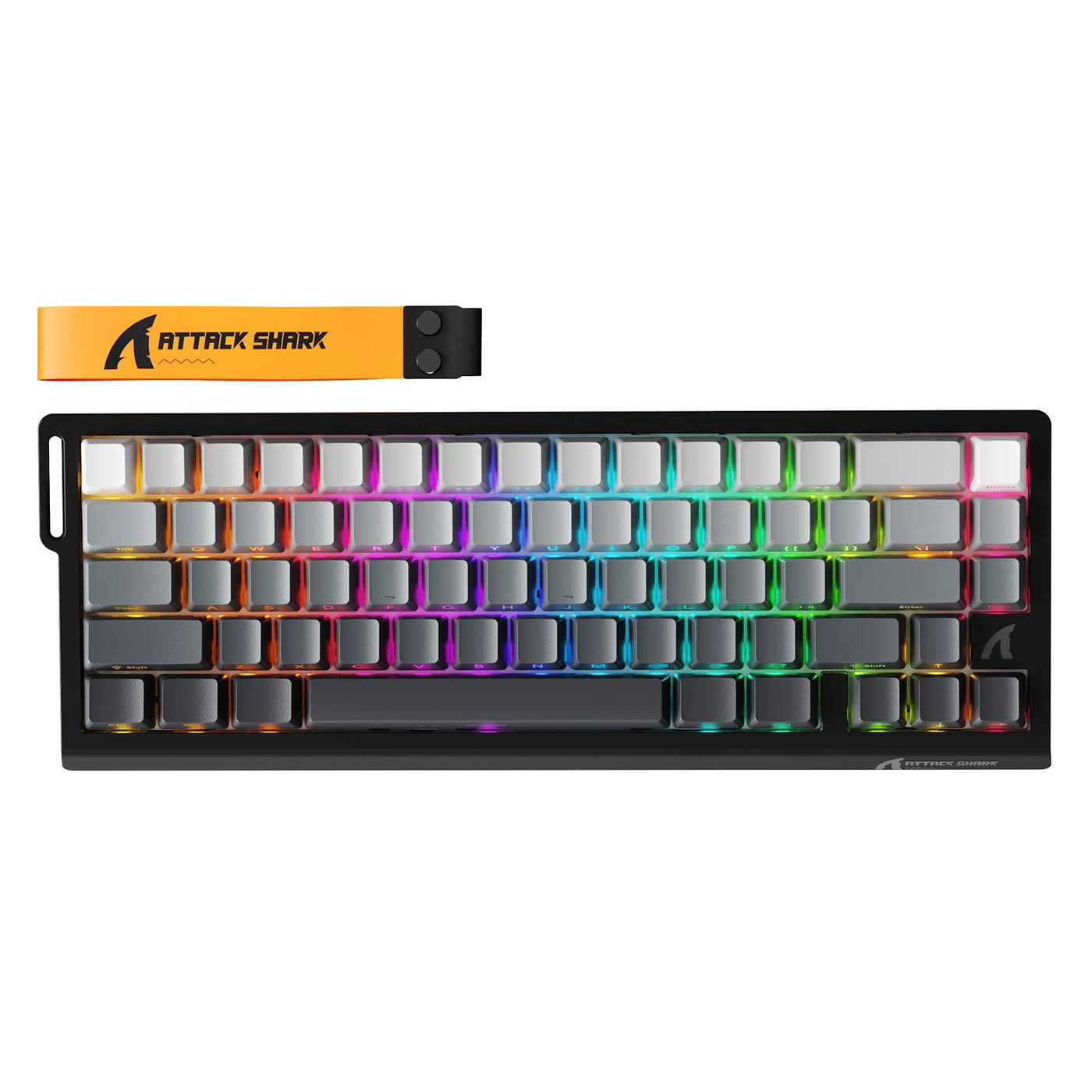
Use a direct wired connection, keep the keyboard stationary, follow the exact model’s documented calibration procedure, and test match-critical keys before competitive play. Hall Effect keyboard calibration is model-specific because magnetic sensing tracks key position, so the controls, prompts, and required resting conditions can differ. A completed calibration prompt is only the starting point. Readiness comes from consistent resting, pressing, releasing, repeated-input, and in-game behavior.

Set Up a Stable Wired Baseline
Start by removing variables that could make the calibration result difficult to reproduce. Connect the keyboard directly to the computer by USB, keep it stationary, and select the exact device and intended profile in the supported software or documented controls. This wired setup provides a controlled baseline. It does not mean every model must be calibrated by cable or that wireless operation is always unsuitable.
Hall Effect keyboards use magnetic position sensing, so a model may use calibration to establish or check a reference for key registration. The need for calibration, control, and prompts varies by keyboard. Before you start, review the model-specific calibration guidance and follow the instructions for your exact keyboard.

Use this five-point preparation check:
- Connect the keyboard directly by USB instead of using a hub or changing connection modes during the process.
- Keep the board flat and still, with no keys pressed while the software or onboard control is ready.
- Select the exact keyboard, profile, and supported calibration control. Make sure you are not calibrating a different device or profile.
- Leave actuation, rapid-trigger, profile, cable, and connection settings unchanged until calibration is complete.
- List the keys that matter in your game, including movement keys, modifiers, abilities, and other frequently used inputs. You will test them separately afterward.
This baseline makes the result easier to judge. It does not prove that the keyboard is ready for a ranked match. Only the validation step can do that.
Run Hall Effect Keyboard Calibration With the Documented Control
Once the baseline is stable, use the exact model’s supported software or documented onboard control. There is no universal Hall Effect keyboard calibration shortcut, timing rule, or prompt sequence that applies safely to every model.
Follow this model-agnostic path:
- Select the exact keyboard in its supported software, or open the documented onboard calibration control.
- Start the calibration process described for that model.
- Leave the board and keys in the required resting or position state. Do not press keys, switch profiles, or adjust actuation settings while the process is running.
- Complete the prompts and wait for the model’s documented completion state.
- Apply your intended play settings only after calibration finishes. If the model supports saving a profile or baseline, save it. Otherwise, record the settings you used.
- Test individual keys before changing additional settings.
These are practical Hall Effect keyboard calibration steps, but the control names and required key state remain model-dependent. If the calibration control is missing, produces an error, or fails to complete, do not guess at a keyboard shortcut, firmware procedure, or hidden manual sequence. Use the exact model’s manual or manual calibration guidance instead.
If you recently changed firmware, software, connection mode, or actuation settings, treat the result as a new baseline. Do not compare it with an earlier setup as though no variables had changed.
Verify the Keys Before Competitive Play
Treat calibration as successful only when the keys you rely on behave consistently in a controlled input view and in the game. Test one match-critical key at a time, then note whether the issue is isolated to one key, grouped in a cluster, or present across the board.
| Test | Observe | Next decision |
|---|---|---|
| Resting state | No unintended input appears while the key is untouched. | Continue if the key remains inactive at rest. Otherwise, include the result in the retry record. |
| Deliberate press | The intended key press appears reliably in the input view. | Continue to release testing when each deliberate press registers. |
| Release and reset | The input clears after release and returns to its expected resting state. | Continue if the key resets consistently. Preserve the pattern if it remains active or misses the reset. |
| Repeated press | Several unchanged presses produce the expected input without changing settings between attempts. | Compare the behavior with other match-critical keys. |
| In-game confirmation | Movement, modifier, ability, or other relevant input behaves as expected in the game. | Use the wired baseline for play only when the relevant keys remain consistent. |
This check does not require a universal pass rate, actuation threshold, latency target, or polling-rate benchmark. It answers a more useful question: does each relevant key produce the expected input at rest, on press, on release, during repetition, and in the game? That is how to calibrate a Hall Effect keyboard for a repeatable pre-match baseline without treating a software message as proof of performance.
Retry Once, Then Decide When to Contact Support
Use one controlled retry when registration remains inconsistent. Reconnect the keyboard directly by wire, select the same device and profile, restore the documented baseline, and run the model-specific calibration once more without changing other variables. Then retest the affected keys separately.
A localized problem or a board-wide problem is useful information, but neither pattern proves a hardware defect. A very shallow actuation setting can also feel unstable or produce unintended inputs, so compare the result with the documented baseline before drawing a technical conclusion. Avoid cleaning, disassembly, firmware changes, or hardware intervention unless the exact model’s documentation explicitly directs you to do so.
Recalibration is condition-based rather than an automatic part of every gaming session. Consider it after a meaningful firmware, software, cable or connection, or actuation-setting change when the model supports that step, or when registration becomes inconsistent. The recalibration guidance is a model-specific reference, not a universal schedule.
If the same reproducible failure remains after that one controlled retry, stop changing settings and preserve a concise support record:
- Note the affected keys and whether the pattern is localized, clustered, or board-wide.
- Record the connection mode, selected profile, actuation or rapid-trigger settings, and supported software or firmware state.
- Save the input-view and in-game results from the unchanged retest.
- Send those details through the exact model’s support process. Additional support diagnostic guidance may help organize the information, but it does not establish a universal failure threshold.
The practical boundary is clear: retry once with unchanged variables, then move to model-specific documentation or support when the same failure persists. That preserves the original evidence and prevents repeated tuning from obscuring the problem.
FAQs
Use these answers to resolve common questions before you rely on the keyboard in a competitive match.
Why does my Hall Effect keyboard need calibration?
Magnetic sensing tracks key position, and calibration can establish or check the reference used for consistent registration. Not every keyboard exposes the same control or requires the same process, so use the exact model’s documentation before relying on it in competitive play.
How often should I calibrate a Hall Effect keyboard?
There is no universal daily or per-match schedule. Use the model’s instructions, and consider recalibration after initial setup, a meaningful firmware or software change, a cable or connection change, an actuation-setting change, or a new registration inconsistency when the model supports it.
What should I do if some Hall Effect keyboard keys do not register?
Reconnect directly by wire, restore the same device and profile, and perform one controlled recalibration without changing other variables. Test the affected keys separately. If the same pattern remains, stop adjusting settings and send the recorded results to the model’s support channel.
Can I calibrate a Hall Effect keyboard wirelessly?
This workflow uses a direct wired connection as its controlled baseline. Wireless calibration may depend on the model, so use wireless only when the exact documentation explicitly supports that mode, then test the relevant keys before competitive play.