


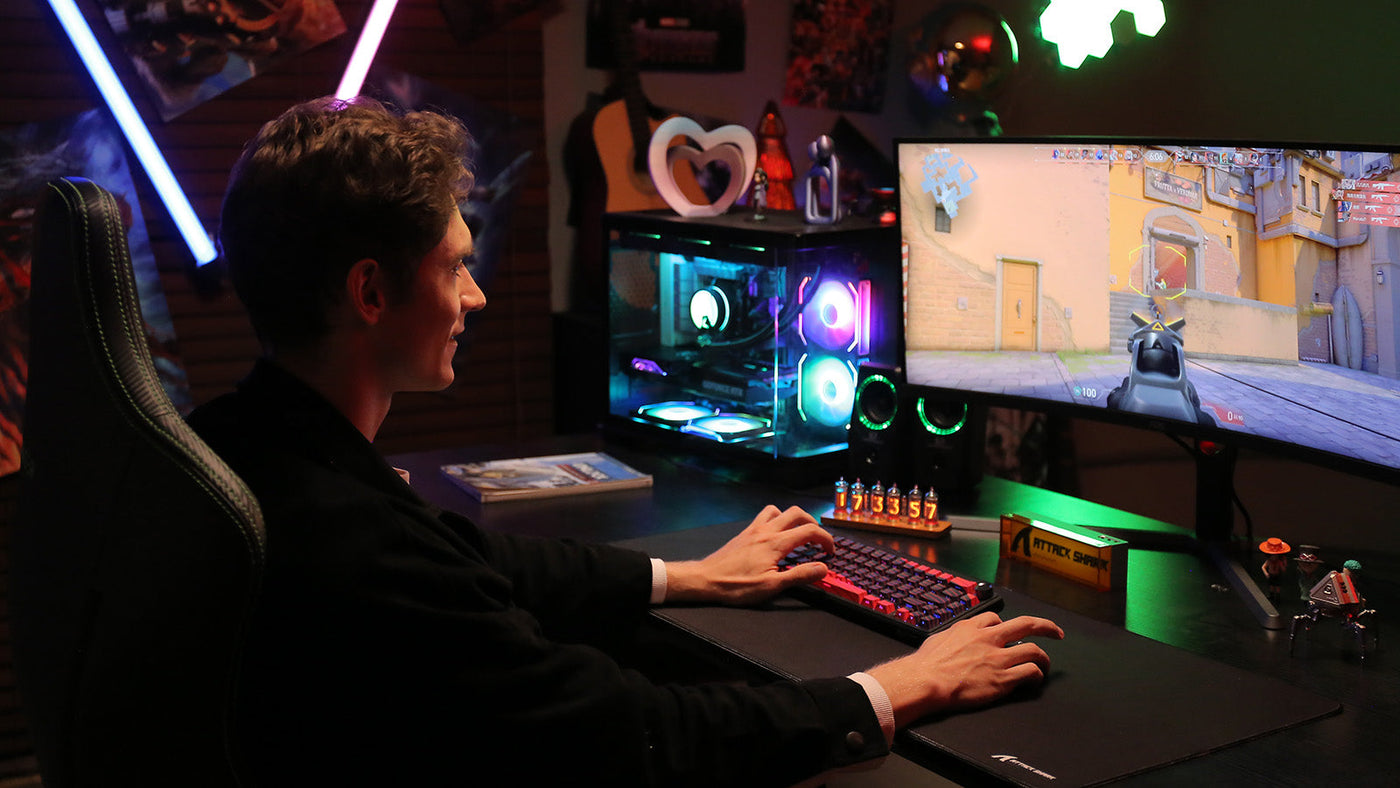
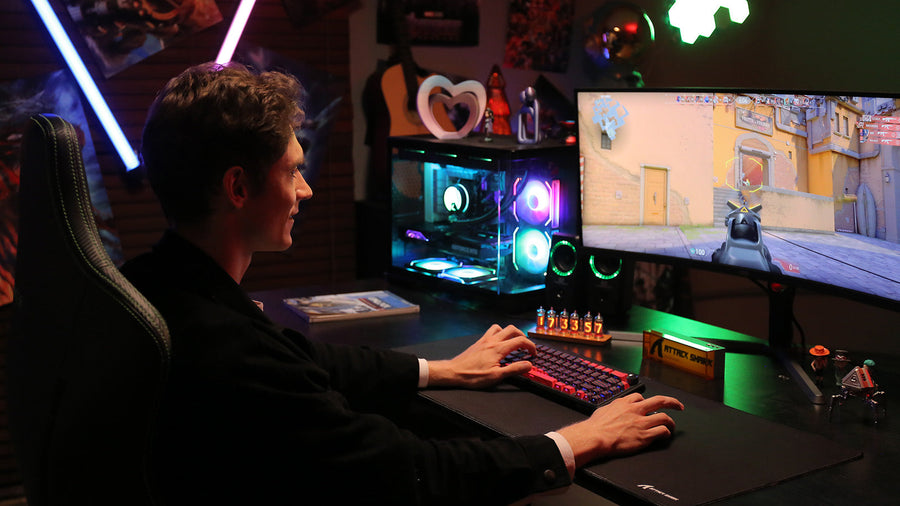
In today's digital age, the keyboard is our primary tool for communication and work. Yet, most of us never learned how to use it properly. We often type with makeshift techniques that slow us down and, worse, lead to physical pain over time. Mastering the correct way to use a computer keyboard is not just about typing speed; it is about efficiency, accuracy, and long-term ergonomic health. This guide breaks down the essential habits you need to transform your typing experience.

Way 1: Establish the Proper Posture
Before your fingers even touch the keys, your body position sets the foundation for success. Poor posture is the leading cause of repetitive strain injuries (RSI) like carpal tunnel syndrome.
Align Your Body
Sit back in your chair with your feet flat on the floor. Your knees should be at a 90-degree angle. Keep your back straight and supported by the chair. Slouching or leaning forward puts unnecessary pressure on your neck and shoulders, which eventually travels down your arms to your wrists.
Adjust Your Height
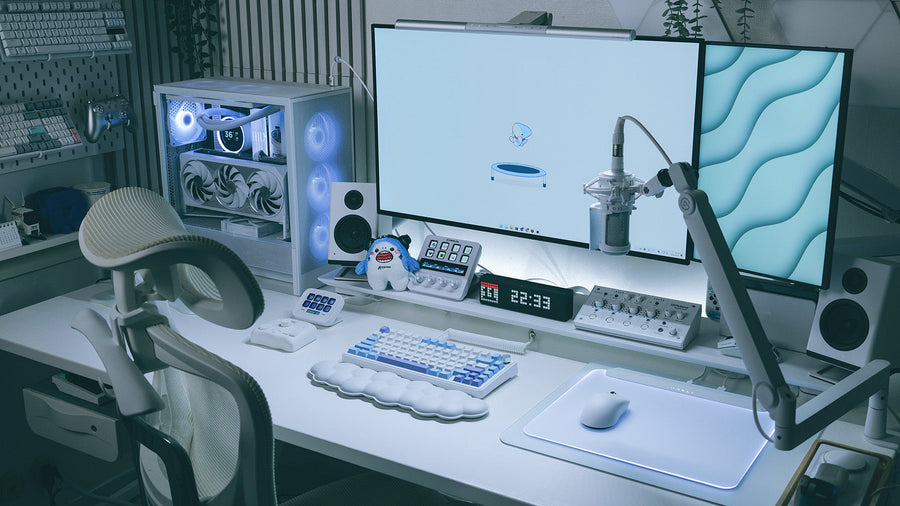
Your keyboard should be at a height where your elbows are bent at an open angle, roughly 90 to 110 degrees. Your forearms should be parallel to the floor. If you have to reach up to type, your shoulders will tense. If you have to reach down, you will hunch. Adjust your chair or desk height until your arms float naturally above the desk surface. For detailed setup guidelines, refer to the OSHA Computer Workstations checklist.

Way 2: Position Your Wrists Correctly
One of the most common mistakes is resting the wrists on the desk or a wrist pad while typing. This anchors the hand and forces the fingers to stretch unnaturally to reach the keys.
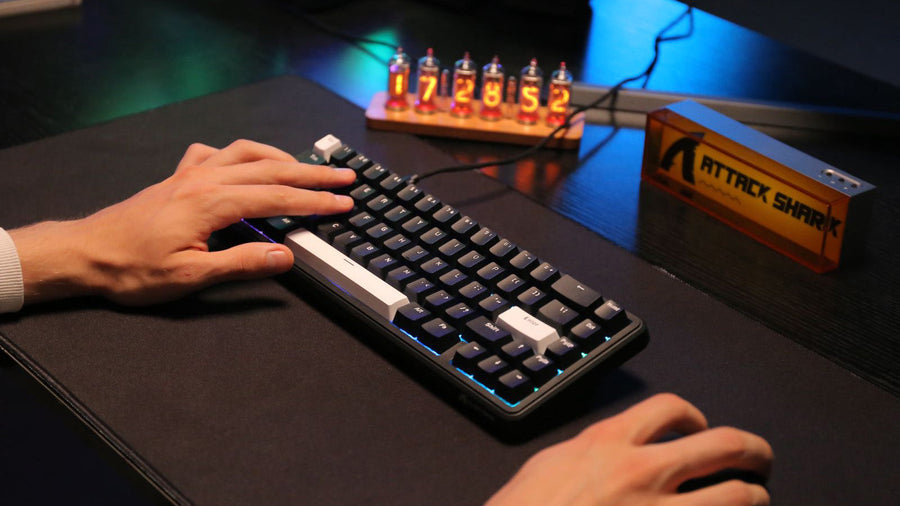
While typing, your wrists should hover slightly above the keyboard. This "floating" position allows your entire arm to move, giving your fingers easier access to the entire board without straining.
If you have a wrist rest, use it only when you are pausing to think or rest. Do not use it as a pivot point while your fingers are moving. Keeping your wrists straight and neutral—not bent up or down—ensures that the tendons in your carpal tunnel slide smoothly without friction.

Way 3: Master the Home Row Technique
The "Home Row" is the central concept of touch typing. It serves as your base of operations. Without returning to this position, you will constantly look down to find keys.
Find the Bumps
Place your index fingers on the 'F' and 'J' keys. Almost all keyboards have small raised bumps on these two keys. These tactile markers allow you to find your starting position without looking.
Finger Placement
- Left Hand: Pinky on 'A', Ring on 'S', Middle on 'D', Index on 'F'.
- Right Hand: Index on 'J', Middle on 'K', Ring on 'L', Pinky on ';'.
- Thumbs: Both thumbs rest gently on the Spacebar.
From this position, each finger is responsible for the keys above and below it. Returning to the home row after every keystroke (in the beginning) builds the muscle memory required for touch typing.
Way 4: Use the Correct Finger for Each Key
To type efficiently, you must divide the labor equally among your fingers. Many untrained typists rely heavily on their index and middle fingers (the "hunt and peck" method), which creates a bottleneck in speed.
Each finger has a specific column of keys it controls. For example, the left pinky handles 'Q', 'A', and 'Z', as well as the Tab, Caps Lock, and Shift keys. The right index finger covers 'U', 'J', 'M', 'Y', 'H', and 'N'.
Using the Shift key correctly is vital for fluidity. Use the pinky on the opposite hand of the letter you are capitalizing. If you need a capital 'A' (left hand), hold the right Shift with your right pinky. This keeps your hands balanced and prevents awkward stretching of a single hand.
Way 5: Maintain a Light Touch
Modern keyboards, whether mechanical or membrane, require very little force to register a keystroke. "Banging" on the keys does not make the computer work faster; it only tires your muscles.
Type with the minimum amount of force necessary. Striking the keys hard sends a shockwave up your finger bones into your joints. Over thousands of keystrokes a day, this micro-trauma accumulates.
Focus on a steady, rhythmic tapping motion. Ideally, your typing should sound like a gentle rain, not a hailstorm. If your fingers are sore at the end of the day, you are likely pressing too hard. Relax your hands and let the keyboard mechanism do the work.
Way 6: Keep Your Eyes on the Screen
The ultimate goal of using a keyboard correctly is to dissociate your eyes from your hands. Looking down breaks your focus and slows your processing speed.
Trust Your Muscle Memory
When you are learning, cover your hands with a towel if necessary. Force yourself to look at the monitor. If you make a mistake, use the Backspace key (reached with the right pinky) without looking down.
Improved Accuracy
By watching the screen, you catch errors immediately as they happen. If you look at your fingers, you might type a whole sentence before realizing you were one key off to the right. Keeping your eyes up improves your editing speed and overall productivity.
Way 7: Take Regular Micro-Breaks
Even with perfect technique, holding your hands in a static position for hours is unnatural. The human body is designed for movement.
Every 20 minutes, take a brief pause. Shake out your hands, stretch your fingers, and roll your wrists. This restores blood flow and releases tension.
Simple stretches can prevent stiffness. Gently pull your fingers back towards you to stretch the underside of your forearm. Then, gently press them down to stretch the top. These small maintenance actions keep your typing mechanism—your hands—in top condition. Research from Cornell University emphasizes that frequent micro-breaks significantly reduce injury risk.
Conclusion: Your Path to Pain-Free Typing
Using a computer keyboard correctly is a skill that pays dividends for a lifetime. By establishing good posture, floating your wrists, and adhering to the home row technique, you transform typing from a physical chore into a fluid, effortless process. It requires patience to break old habits, but the reward is increased speed, higher accuracy, and a pain-free work life. Start implementing these changes today, and your future self will thank you.
FAQs
Are mechanical keyboards better for your hands?
Generally, yes. Mechanical keyboards provide tactile feedback (a click or bump) when a key is actuated. This signals your brain to stop pressing, which prevents "bottoming out" (hitting the base of the keyboard hard) and reduces overall finger impact.
Should I use the legs on the back of my keyboard?
Usually, no. Flipping up the legs tilts the keyboard towards you, forcing your wrists to bend upward (extension). This compresses the carpal tunnel. It is ergonomically safer to keep the keyboard flat or even tilted slightly away from you (negative tilt).
How long does it take to learn touch typing?
With 15-20 minutes of daily practice, most people can memorize the key positions in two weeks and achieve a respectable speed (40+ WPM) within a month or two. Consistency is more important than duration.
Is it okay to use a split ergonomic keyboard?
Absolutely. Split ergonomic keyboards allow you to position the two halves shoulder-width apart. This keeps your wrists straight and prevents your shoulders from rolling inward, which is a major upgrade for comfort during long sessions.