


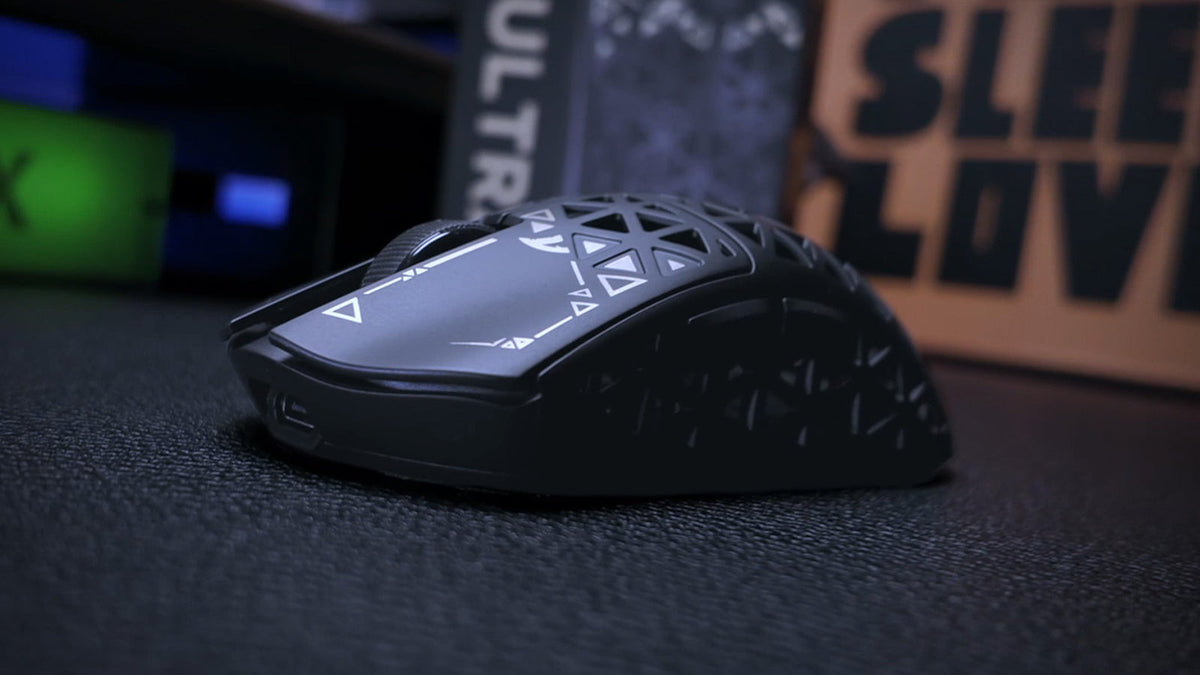

Gaming mouse software lets you set DPI, adjust supported polling rates, remap buttons, and save profiles. Depending on your model, you may use a desktop app, a browser-based Web Driver, or both. Start with the correct tool, then adjust sensitivity, polling rate, and buttons before changing advanced settings.

Find the Correct Mouse Software: ATTACK SHARK X3 Example
To download ATTACK SHARK X3 software, start with our official download center and select the exact mouse model. Check the name underneath your mouse or on its packaging first: X3, X3 PRO, and X3 MAX are separate models, so match the full name before choosing a download.
Follow these steps to find and open your X3 mouse software:
- Open our official download center and select MOUSE.
- Enter X3 in the product search field, then select ATTACK SHARK X3 if you own the standard model. For an X3 PRO or X3 MAX, select that exact entry.
- Choose the configuration software listed for your model and check its operating-system requirements before downloading.
- Install and open the software, then connect your mouse using the connection mode specified in its instructions. Confirm that the tool recognizes it before changing DPI, polling rate, or button assignments.
You can also find the X3 driver download in the Downloads section of the ATTACK SHARK X3 product page, beside the manual.
For models with a Web Driver, find your exact model in our official download center, click its Web Driver link, and follow the instructions on the page. Web Driver pages may differ by model. If your mouse is not recognized after switching to a different model, return to the download center and open the Web Driver link for that model.
Set DPI, Then Adjust In-Game Sensitivity
DPI describes movement counts per inch of mouse travel. With other settings unchanged, higher DPI moves the pointer or crosshair farther. DPI and in-game sensitivity work together, so set them as a pair.
If you are starting fresh, try 800 or 1600 DPI. Keep that value fixed while testing in-game sensitivity in a practice area. Track a moving target, make small corrections, and turn toward a target behind you.
Lower in-game sensitivity slightly if you repeatedly overshoot small targets. Raise it slightly if normal turns repeatedly take you off the usable mousepad. Repeat the same movements after each adjustment, keeping your DPI unchanged so you can identify what helped.
If accidental button presses change your sensitivity, disable unused DPI stages or reassign the DPI button when the software allows it. Keep an existing DPI setting if it already feels comfortable.
Windows pointer speed is separate from sensor DPI. In Windows 11, mouse pointer settings are under Settings > Bluetooth & devices > Mouse. To test without Windows pointer acceleration, turn off Enhance pointer precision. Older layouts may place it under Additional mouse settings > Pointer Options.
Games using raw mouse input bypass Windows pointer acceleration for that input. Enable it if available, then adjust in-game sensitivity. Windows settings can still affect the desktop and some menus.
Choose a Supported Polling Rate
Polling rate describes how often the mouse reports input to your computer. A higher rate shortens the nominal interval between reports.
| Polling Rate | Nominal Report Interval |
|---|---|
| 500 Hz | 2 ms |
| 1000 Hz | 1 ms |
| 2000 Hz | 0.5 ms |
| 4000 Hz | 0.25 ms |
| 8000 Hz | 0.125 ms |
The report interval is only part of input latency. A 1000 Hz setting does not mean the complete movement-to-screen response takes 1 ms; game processing, rendering, and the display also contribute.
Start at 1000 Hz if supported. On a higher-rate mouse, compare it with 2000, 4000, or 8000 Hz in the same game. Keep sensitivity unchanged and repeat quick turns and tracking movements. Higher rates increase input-processing demands and can shorten wireless battery life. If movement stays smooth and the battery trade-off suits you, keep the higher setting. If moving the mouse introduces stutter, return to the previous rate and retest.
The connection also matters. Our R5 ULTRA supports up to 8000 Hz over 2.4 GHz with the matching receiver, while wired mode supports 1000 Hz. Before troubleshooting a missing rate, check which rates your model supports in the mode you are using.
Assign Useful Buttons and Test Them in the Game
Start with one action you use frequently, such as push-to-talk or melee. If the game recognizes your side button directly, bind it in the game’s controls menu. This avoids an unnecessary keyboard mapping.
For a keyboard assignment, select the button in the mouse software, assign the required key, and apply the change. Then bind that key to the intended action in the game. For example, if a side button sends V, V must also be assigned to your intended action in the game’s controls.
Test the button while moving and aiming, and check for conflicting commands. A push-to-talk assignment should remain active while held and stop when released. Keep primary click available while experimenting so you can still operate the software.
A single-key remap differs from an automated macro. Macros can execute sequences or repeat inputs, and games or tournaments may restrict them. Check the relevant rules before using automation; an available software feature does not establish permission to use it in a match.

Save Your Profile Before Tuning Advanced Options
Apply your changes and use the onboard-save option if your mouse provides one. Close the configuration tool, reconnect the mouse, and test sensitivity and button assignments again. This verifies which settings remain available without the app or browser open.
A computer profile and an onboard profile may retain different features. If automatic game-profile switching is supported, launch the game and confirm that the intended profile activates.
Leave advanced settings at their defaults until you have a specific reason to change them. If the crosshair moves while you lift and reposition the mouse, try a lower supported lift-off distance, then check that normal movement still tracks reliably. Keep angle snapping off when you want aiming movements without straight-line correction. Run surface calibration only if your model offers it, using your normal mousepad.
Adjust lighting and sleep behavior separately. Record original values so you can undo unhelpful changes.

Troubleshoot Software Detection and Settings
Use the symptom to choose the next check:
| Problem | What to Check First |
|---|---|
| The app cannot find the mouse | Confirm the full model name and supported connection mode. For a model with wired support, try its supplied data cable in wired mode and another direct USB port. |
| The Web Driver cannot connect | Check browser support and device permission. Close other configuration apps or tabs that may be accessing the mouse, reconnect it, and try again. |
| Settings disappear after reconnecting | Check the active profile and whether changes were applied or saved to the intended location. |
| A mapped button fails only in one game | Check that game’s binding and conflicting commands. Test a basic single-key assignment. |
| Movement stutters after a polling-rate change | Restore the previous rate and repeat the same movements in the same game. |
If detection still fails, record your model, operating system, connection mode, and error message before contacting support. Install firmware only for the exact device and follow its update instructions. Avoid disconnecting it during an update or installing another model’s firmware as a detection fix.
FAQs About Gaming Mouse Software
Q1. Can One Configuration App Control Mice From Different Brands?
Usually, a manufacturer’s app supports only its listed devices. General remapping utilities may change button behavior without controlling sensor DPI, polling rate, or onboard memory. Use the configuration tool specified for your exact model when changing hardware settings.
Q2. What Is the Difference Between Mouse Software and Firmware?
Configuration software is the app or web interface used to change settings. Firmware runs inside the mouse or receiver. Updating the configuration app and updating device firmware are separate tasks, each with its own compatibility requirements and installation instructions.
Q3. Does Gaming Mouse Software Increase FPS?
No, changing DPI or button assignments does not directly increase frame rate. Mouse software primarily controls input behavior. Polling-rate changes can affect processing load, so assess movement consistency and game smoothness rather than expecting the software to boost graphics performance.
Q4. Can I Copy the Same Sensitivity Number Between Games?
Not reliably, because games can use different sensitivity scales. Start with your preferred mouse DPI, then adjust each game’s sensitivity separately. Compare familiar turning and tracking movements rather than assuming that an identical slider value produces an identical aiming speed.
Q5. Can Mouse Software Fix Unwanted Double-Clicks?
Sometimes. Restore a basic single-click assignment first to rule out an unintended mapping or macro. Follow the model’s instructions if debounce adjustment is available. Persistent extra clicks can also indicate a hardware issue that needs support; software cannot repair a damaged switch.
Check Your Setup Before Your Next Match
Save a screenshot of your working settings. Reconnect the mouse and run a short practice session to confirm that sensitivity, button assignments, and movement remain consistent. Change further options only when you have a specific problem to solve.