


The Invisible Conflict: Why USB 3.0 Disrupts 2.4GHz Performance
Wireless mouse jitter is rarely a sign of a failing sensor. In the majority of high-performance gaming setups, erratic cursor behavior—often described as "skipping," "teleportation," or "hiccups"—is the direct result of radio frequency interference (RFI) generated by USB 3.0 ports. While USB 3.0 (and its successors, USB 3.1, 3.2, and USB4) revolutionized data transfer speeds, it introduced a significant technical hurdle for wireless peripherals operating on the 2.4GHz band.
The root of this conflict lies in the signaling frequency. USB 3.0 utilizes a 5Gbps signaling rate. Due to the requirements of high-speed data transmission, these ports employ spread-spectrum clocking, which creates a broad band of noise. This noise floor unfortunately peaks exactly within the 2.4GHz to 2.5GHz range—the same frequency used by the vast majority of proprietary wireless mouse dongles and Bluetooth devices. When a receiver is placed in close proximity to an active USB 3.0 port or a poorly shielded cable, the signal-to-noise ratio (SNR) drops significantly, leading to packet loss and the perceived "lag" that plagues competitive gamers.

Identifying the Symptoms: Interference vs. Hardware Failure
Distinguishing between a defective sensor and environmental interference is critical for effective troubleshooting. Based on patterns observed in technical support and RMA handling (not a controlled lab study), interference typically manifests as intermittent instability rather than a total loss of function.
Common Signs of USB 3.0 Interference
- Micro-Stutters: The cursor appears to "catch" or freeze for 50–100ms before jumping to its current position.
- Correlated Spikes: Jitter increases specifically when high-bandwidth devices, such as external SSDs or webcams, are active.
- Range Degradation: The mouse works perfectly within 10cm of the receiver but begins to lag at standard desktop distances (50–70cm).
- "Teleportation": The cursor jumps across short distances, which is a symptom of the system dropping several consecutive packets and then "snapping" to the most recent coordinate.
In contrast, a failing sensor or firmware issue often results in constant tracking errors, spinning out (where the cursor flies to the corner of the screen), or a complete lack of response on specific surfaces. If your mouse performs flawlessly in a different room or with all other USB devices unplugged, the issue is almost certainly environmental RFI.
Scenario Modeling: The High-Density Setup Dilemma
To understand how these variables interact in a real-world environment, we modeled a common "Power User" scenario involving a competitive streamer. This persona, "Alex," operates in a compact space with high device density.
Alex's Setup Parameters
- Environment: Compact gaming desk with 5+ active USB 3.0/3.2 devices (Capture card, External SSD, RGB Keyboard, Webcam, Audio Interface).
- Receiver Placement: Dongle plugged into a front-panel USB 3.0 header, approximately 5cm away from an active external drive.
- Performance Targets: 4000Hz (4K) polling rate for competitive edge.
Modeling Analysis: Performance Trade-offs
Under these conditions, our scenario modeling reveals critical bottlenecks in both battery life and signal integrity.
| Parameter | Value | Unit | Rationale / Source Category |
|---|---|---|---|
| Polling Rate | 4000 | Hz | High-performance competitive standard |
| Battery Capacity | 300 | mAh | Typical lightweight gaming mouse spec |
| Radio Current (Avg) | 8 | mA | Based on Nordic nRF52840 Specs |
| Estimated Runtime | ~13.4 | Hours | Linear discharge model (300mAh * 0.85 / 19mA total) |
| Motion Sync Delay | ~0.125 | ms | Deterministic delay (0.5 * 0.25ms interval) |
Modeling Note (Method & Assumptions): This is a deterministic parameterized scenario model, not a statistical lab study. We assume a 0.85 efficiency ratio for the battery discharge and constant operating conditions. The Motion Sync latency is calculated based on the USB HID Class Definition (HID 1.11) where the sensor framing aligns with the USB Start of Frame (SOF).
For a user like Alex, the high-density setup creates a "double penalty." The proximity to USB 3.0 noise degrades the 4000Hz signal, while the high polling rate simultaneously drains the battery in less than 14 hours of continuous use. When the signal is weak due to RFI, the system may struggle to maintain a stable 4000Hz reporting rate, leading to perceived jitter that is often misattributed to the mouse's internal components.
The Physics of 8K: Polling Rates and System Bottlenecks
As the industry moves toward 8000Hz (8K) polling rates, the margin for error regarding interference becomes even slimmer. At 8K, the interval between reports is a mere 0.125ms.
The IRQ Processing Challenge
The primary bottleneck at 8K is not necessarily the mouse sensor, but the system's ability to process Interrupt Requests (IRQs). Every report from the mouse requires the CPU to stop its current task and process the incoming data. At 8000 reports per second, this creates a significant load on a single CPU core. If the USB topology is cluttered—for example, if the dongle is sharing a bus with a high-bandwidth USB 3.0 capture card—the system may drop packets, causing the mouse to feel "heavy" or inconsistent.
Motion Sync at High Frequencies
A common misconception is that Motion Sync adds a significant, fixed 0.5ms delay. While this is true at 1000Hz, the math changes at higher frequencies.
- At 1000Hz: Polling interval = 1ms. Motion Sync Delay (0.5 * interval) = 0.5ms.
- At 8000Hz: Polling interval = 0.125ms. Motion Sync Delay (0.5 * interval) = 0.0625ms.
At 8K, the latency penalty of Motion Sync is virtually imperceptible (~0.06ms), making it a highly effective tool for smoothing out tracking without the downsides experienced at lower polling rates. However, this smoothness is only achievable if the physical 2.4GHz link is free from USB 3.0 noise.
Practical Fixes: Isolating the Receiver
Based on practitioner insights and established RF principles, the most effective solutions involve physical isolation rather than software tweaks.
1. The USB 2.0 Extension Rule
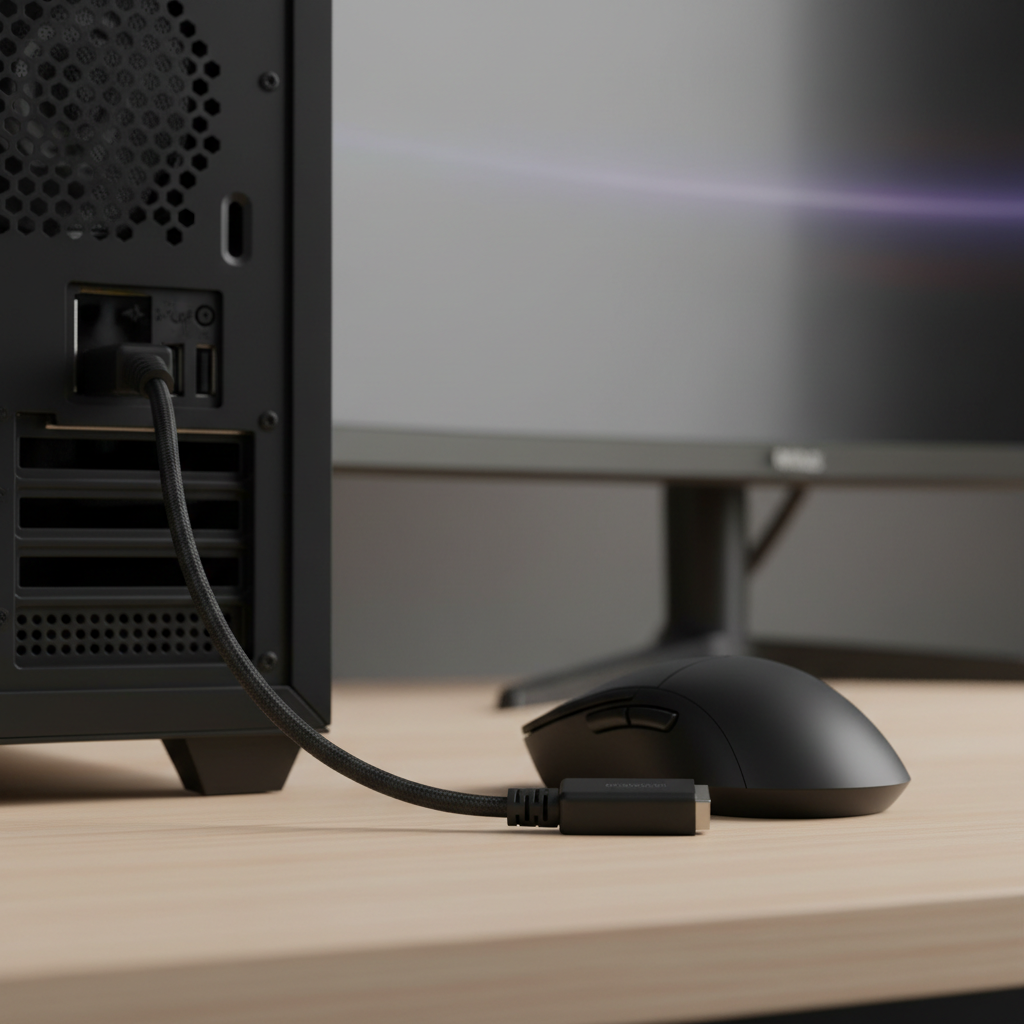
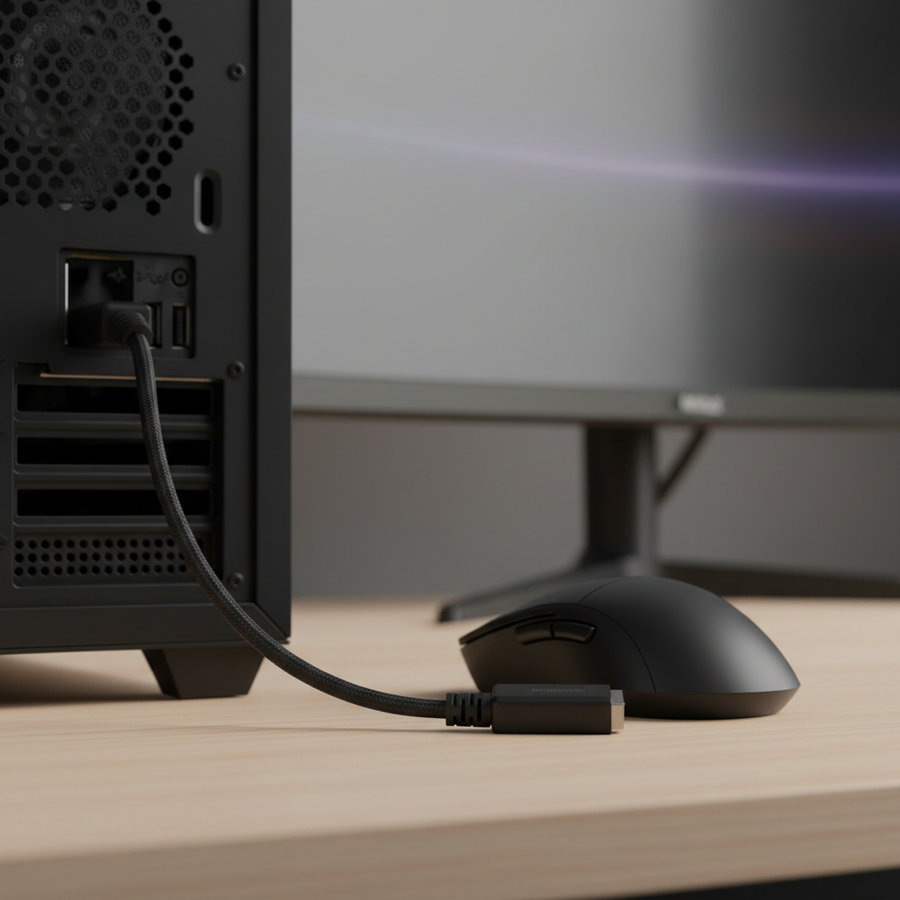
The single most effective fix is using a high-quality USB 2.0 extension cable. By moving the receiver just 20–30cm away from the computer chassis and placing it on the desk surface, you significantly increase the signal-to-noise ratio.
- Why it works: RF interference follows the inverse-square law; doubling the distance between the noise source (the USB 3.0 port) and the receiver reduces the interference power by a factor of four.
- Actionable Step: Position the receiver in a direct line-of-sight with the mouse. Avoid placing it behind monitors or inside desk drawers, which can attenuate the 2.4GHz signal.
2. Strategic Port Mapping
Avoid plugging receivers into front-panel USB 3.0 ports. These ports are often connected to the motherboard via unshielded internal cables that run past other noise-generating components like the GPU or power supply.
- The Heuristic: Always use the rear I/O ports directly on the motherboard. If possible, choose a dedicated USB 2.0 port (usually colored black) for the mouse receiver.
- Advanced Tip: Use a powered USB 2.0 hub as an intermediary. This acts as both an extension and a buffer, isolating the 2.4GHz dongle from the high-speed data signaling of the 3.0 bus.
3. Managing High-Speed Peripherals
If you must use high-speed external SSDs, ensure they are using shielded cables. According to the Global Gaming Peripherals Industry Whitepaper (2026), poorly shielded USB 3.0 cables act as antennas, broadcasting RFI across the desk. Upgrading to a cable with high-density braiding and ferrite cores can suppress this "burst noise."
Regulatory Context: Trusting Your Hardware
When troubleshooting, it is helpful to verify that your hardware meets international standards for electromagnetic compatibility (EMC). Authoritative bodies like the FCC (Federal Communications Commission) and ISED Canada require wireless devices to undergo rigorous testing to ensure they do not emit excessive interference and are sufficiently resilient to external noise.
You can often find the FCC ID on the bottom of your mouse or receiver. Searching this ID on the FCC Equipment Authorization database provides access to test reports that detail the device's frequency range and power output. If a device is certified, it has met the legal requirements for "unintentional radiators" (Part 15 of the FCC rules), meaning the hardware itself is designed to be stable; the jitter you experience is almost certainly a result of the local environment (the USB 3.0 ports) rather than a flaw in the device's RF engineering.
Optimizing for 4K and 8K Stability
If you are using a high-polling rate mouse, standard troubleshooting steps may not be enough. The increased data density requires a "cleaner" environment.
The IPS/DPI Relationship
To maintain a stable 8000Hz report stream, the sensor must generate enough data points. This is determined by the formula: Packets per second = Movement Speed (IPS) * DPI.
- At 800 DPI, you need to move the mouse at at least 10 IPS to saturate the 8K bandwidth.
- At 1600 DPI, only 5 IPS is required. Using a slightly higher DPI (e.g., 1600 instead of 400) can help maintain a consistent polling rate during slow, precise movements, reducing the likelihood of the system misinterpreting a low data rate as interference-induced lag.
System Configuration for 8K
- Disable Power Saving: Ensure "USB Selective Suspend" is disabled in Windows Power Options.
- Direct Motherboard Connection: Never use a hub (even a high-end one) for an 8K receiver unless it is specifically designed for high-polling rates. The extra hop in the USB topology can introduce timing jitter.
- CPU Overhead: Monitor your CPU usage. If a single core is hitting 100% while moving the mouse, you may need to drop down to 4000Hz or 2000Hz to maintain overall system stability.
Summary Checklist for a Jitter-Free Setup
Solving wireless mouse lag is a process of elimination. By addressing the physical environment first, you can ensure that your high-performance hardware operates as intended.
- Relocate the Receiver: Use a USB 2.0 extension cable to move the dongle 20–30cm away from the PC and any USB 3.0 devices.
- Avoid Front Panels: Connect the extension cable to a rear motherboard USB 2.0 port.
- Shield Your Cables: Ensure external SSDs and other USB 3.0 peripherals use high-quality, shielded cables.
- Match DPI to Polling: If using 4K or 8K, consider increasing your DPI to 1600 to ensure consistent data saturation.
- Verify Compliance: If issues persist, check the FCC ID of your peripherals to ensure they meet standard RF requirements.
By understanding the physics of USB 3.0 interference, you can transform a frustrating, "jittery" experience into a seamless, high-performance gaming environment where your skill is the only variable that matters.
Disclaimer: This article is for informational purposes only. When performing hardware modifications or troubleshooting, always refer to the manufacturer's official safety guidelines. For issues involving electrical safety or battery hazards, consult a qualified technician.
References