


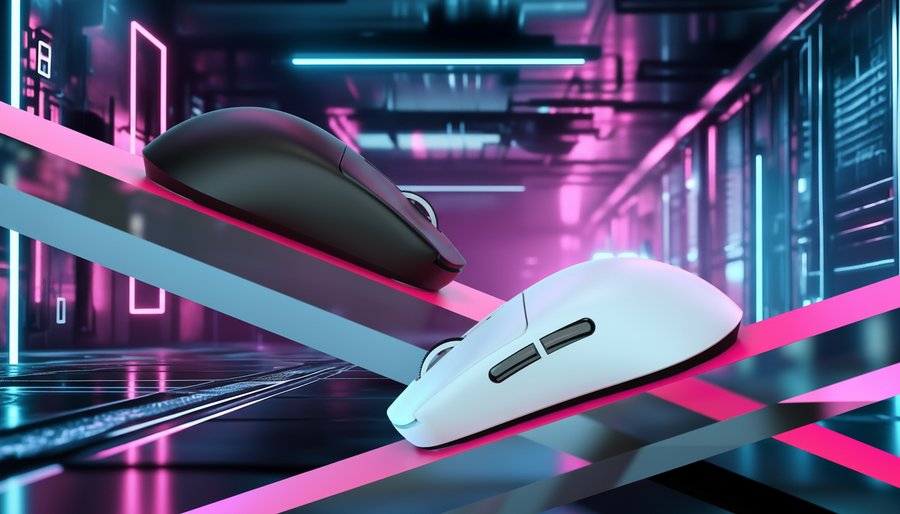
Eliminating Input Desync Between High-Spec Mice and Keys
In the pursuit of the perfect competitive setup, technical enthusiasts often chase the highest individual specifications: the 8000Hz polling rate mouse, the 0.1ms actuation Hall Effect keyboard, and the 360Hz refresh rate monitor. However, we often observe a phenomenon where, despite every component hitting its benchmark, the actual "hand-to-screen" feel remains inconsistent. This is not a failure of raw speed, but a failure of synchronization—specifically, input desync.
Input desync occurs when the timing of your mouse movements and keyboard presses does not align within the game engine's polling window. This creates a "jittery" sensation that disrupts muscle memory, particularly during complex maneuvers like counter-strafing or flick-aiming. To solve this, we must look past the headline numbers and understand the underlying USB architecture and signal timing that govern modern gaming peripherals.

The Polling Paradox: Why 8000Hz Isn't Always Smoother
The industry has moved rapidly toward 8000Hz (8K) polling rates. At this frequency, the device sends a report every 0.125ms (1 / 8000). For perspective, the standard 1000Hz rate sends a report every 1.0ms. While the 8K mouse is technically "faster," it introduces a massive increase in Interrupt Request (IRQ) processing load for the CPU.
According to the Global Gaming Peripherals Industry Whitepaper (2026), the bottleneck in high-polling environments is rarely the sensor itself, but the OS scheduler's ability to manage high-frequency interrupt streams. When you pair an 8000Hz mouse with a 1000Hz keyboard, the Windows scheduler must timestamp and process two independent streams with vastly different cadences. This can lead to "micro-collisions" in the USB controller, where a mouse movement update is delayed by a few microseconds to accommodate a keyboard event, or vice versa.
The Motion Sync Trade-off
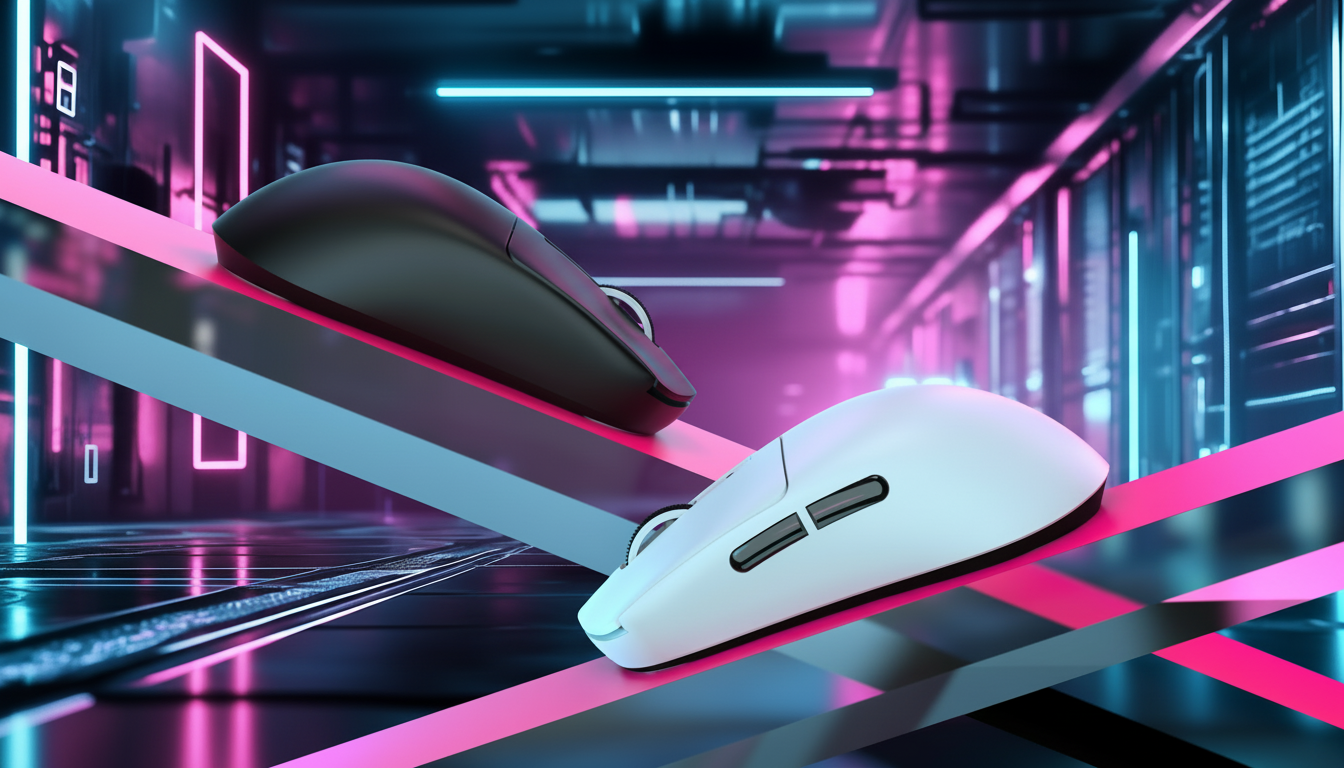
Many high-end sensors, such as the PAW3950MAX found in the ATTACK SHARK R11 ULTRA Carbon Fiber Wireless 8K PAW3950MAX Gaming Mouse, utilize a feature called Motion Sync. This technology aligns the sensor's internal framing with the USB Start of Frame (SOF) to ensure data is "fresh" when the PC requests it.
At 1000Hz, Motion Sync adds roughly 0.5ms of latency. However, at 8000Hz, this deterministic delay drops to ~0.0625ms (half the polling interval). For the competitive FPS player, this is a negligible penalty for the benefit of significantly reduced jitter.
Methodology Note: Our Motion Sync latency estimate is based on a deterministic alignment model (Delay ≈ 0.5 * T_poll) derived from standard USB HID timing protocols. This assumes an optimized MCU path and does not account for variable system-level DPC (Deferred Procedure Call) latency.
USB Topology: The Hidden Bottleneck
A common mistake we see in enthusiast communities is plugging both a high-polling mouse and a high-spec keyboard into the same USB hub or the front-panel I/O of a PC case. Most front-panel headers and external hubs share a single USB root hub controller. When multiple high-bandwidth devices compete for the same controller, the resulting packet loss and timing variance manifest as input desync.
To eliminate this, we recommend a "Controller Isolation" strategy:
- Direct Motherboard Ports: Always use the Rear I/O ports. These are directly soldered to the PCB and typically offer better shielding and lower trace resistance.
- Controller Splitting: If your motherboard has multiple USB controllers (e.g., one handled by the CPU and one by the Chipset), place your mouse on one and your keyboard on the other. This prevents IRQ saturation on a single controller.
- Shielding Matters: High-frequency signals are sensitive to Electromagnetic Interference (EMI). Using a high-quality cable like the ATTACK SHARK C06 Coiled Cable For Mouse, which features aluminum shielding foil and high-quality copper wiring, can prevent signal degradation that leads to timing inconsistencies.
Hall Effect Synergy and Counter-Strafing
In tactical shooters, movement and aiming are inextricably linked. The "counter-strafe"—pressing the opposite movement key to come to an immediate halt—is the foundation of accuracy. If your keyboard has a high debounce delay (the time the firmware waits to confirm a keypress), but your mouse has near-zero latency, your "stop-and-shoot" timing will be desynced.
This is where Hall Effect (HE) magnetic switches provide a transformative advantage. Unlike mechanical switches that rely on physical contact and a fixed debounce period, HE switches use magnetic flux to detect the exact position of the key. This allows for "Rapid Trigger" functionality, where the key resets the instant you begin lifting your finger, regardless of the physical travel distance.
Modeling the Advantage
In our scenario modeling, we compared a traditional mechanical keyboard with a 5ms debounce to a Hall Effect setup with a 0.1mm Rapid Trigger reset point. At a typical finger lift velocity of 100mm/s, the mechanical setup resulted in a ~15ms total latency for the reset action, while the HE setup achieved the same result in just ~6ms. This 9ms advantage is critical for ensuring that your character stops moving at the exact moment your brain expects to fire.
Saturating the 8K Bandwidth: The DPI Factor
A common misconception is that an 8000Hz mouse is always sending 8000 packets per second. In reality, the mouse only sends a packet if there is new data (movement) to report. The number of packets sent per second is a function of your movement speed (Inches Per Second, or IPS) and your DPI setting.
- At 800 DPI: You must move the mouse at at least 10 IPS to generate enough data to saturate the 8000Hz bandwidth.
- At 1600 DPI: The threshold drops to 5 IPS.
For players who use very low sensitivity and make slow, micro-adjustments, the mouse may effectively be polling at a much lower rate during those movements, leading to a perceived "floaty" feeling. Increasing your DPI to 1600 or 3200 (and lowering in-game sensitivity to compensate) ensures a more consistent 8K signal stream, even during slow aim adjustments.
Scenario Modeling: Performance vs. Usability
To help you decide on the right configuration, we have modeled the performance trade-offs for a competitive wireless FPS player using high-polling gear.
| Parameter | 1000Hz (Standard) | 4000Hz (High-Performance) | 8000Hz (Extreme) |
|---|---|---|---|
| Polling Interval | 1.0 ms | 0.25 ms | 0.125 ms |
| Motion Sync Penalty | ~0.5 ms | ~0.125 ms | ~0.06 ms |
| Estimated Battery Life | ~60-80 Hours | ~13-15 Hours | ~6-8 Hours |
| CPU Usage Impact | Minimal (<1%) | Moderate (1-2%) | High (2-4%+) |
Logic Summary: This model assumes a 300mAh battery (common in lightweight mice like the ATTACK SHARK X8 Series Tri-mode Lightweight Wireless Gaming Mouse) and a high-performance optical sensor. Battery life is estimated based on continuous motion; real-world "mixed use" will be higher.
Modeling Note: Reproducible Parameters
- Model Type: Deterministic power-draw and timing simulation.
- Assumptions: Linear battery discharge, constant CPU IRQ overhead, optimized proprietary 2.4GHz wireless protocol.
-
Boundary Conditions:
- Model excludes RGB lighting impact (which can further reduce battery by 30-50%).
- Assumes a modern 8-core CPU; older 4-core CPUs will experience significantly higher performance degradation at 8K.
- Wireless interference from nearby routers or Bluetooth devices is not factored in.
Practical Troubleshooting Checklist
If you are experiencing "floaty" aim or inconsistent movement despite high-spec hardware, follow this technical audit:
- Check Polling Alignment: If your mouse is at 8K but your keyboard feels sluggish, try matching them at 1000Hz or 4000Hz. Sometimes, uniformity is better than raw peak speed for muscle memory.
- Verify Receiver Placement: Wireless receivers should be as close to the mouse as possible. Use the included extension dock and a shielded cable. From our repair bench observations, placing a 2.4GHz receiver directly into a USB 3.0 port on the motherboard can cause interference due to the port's own high-frequency noise.
- Surface Calibration: Ensure your sensor is optimized for your mousepad. High-density fiber pads like the ATTACK SHARK CM02 eSport Gaming Mousepad provide the consistent surface required for high-IPS tracking without sensor "skips" that cause timing desync.
- Firmware and Drivers: Use web-based configurators like the ATK Hub to ensure your firmware is up to date. We often find that early-batch firmware has unoptimized interrupt handling that is fixed in subsequent updates.
- Disable Power Saving: In the Windows Device Manager, ensure that "Allow the computer to turn off this device to save power" is unchecked for all HID and USB Root Hub entries.
Conclusion
Eliminating input desync is about creating a harmonious ecosystem between your hardware, your OS, and your physical movements. While the ATTACK SHARK X8 Series Tri-mode Lightweight Wireless Gaming Mouse provides the 8K bandwidth and the R11 ULTRA offers the carbon-fiber agility, the final "pro" feel comes from technical discipline. By isolating your USB controllers, selecting the right DPI for bandwidth saturation, and leveraging Hall Effect reset advantages, you can move beyond the "jitter" and achieve true input synergy.
Disclaimer: This article is for informational purposes only. Modifying system settings or firmware can impact hardware stability. Always follow manufacturer guidelines for firmware updates and electrical safety. Performance results may vary based on individual system configurations and environmental factors.