


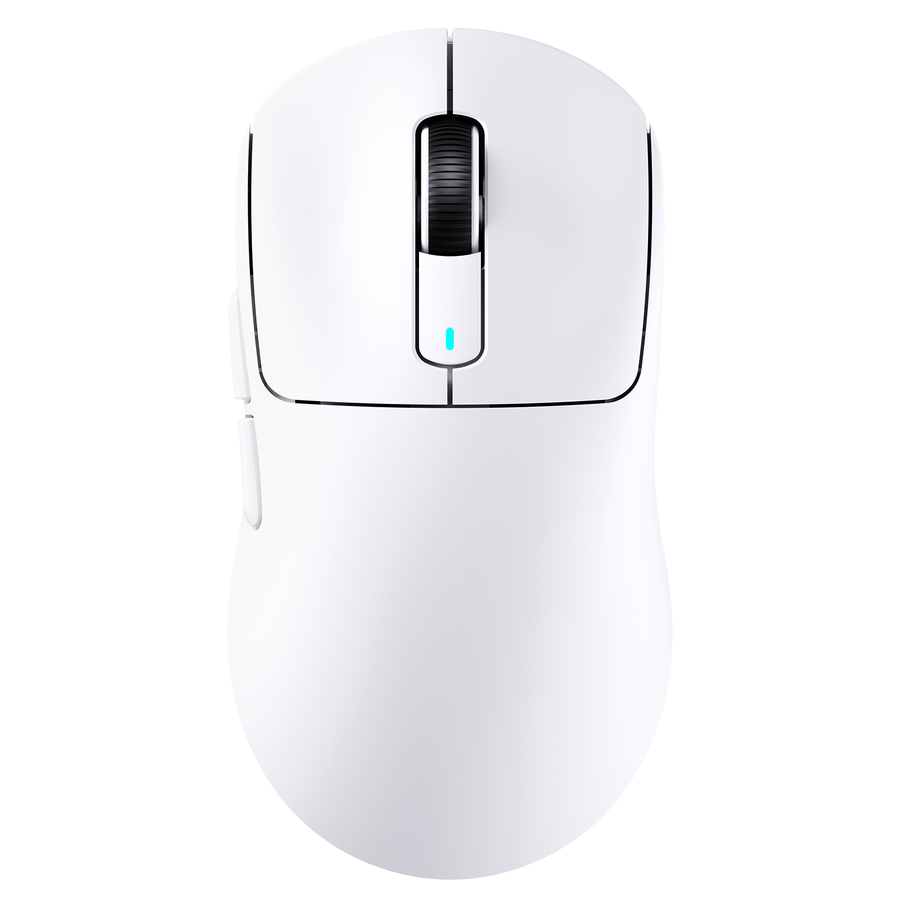
To keep your FPS mouse sensitivity consistent when switching mice, write down your old setup before you unplug it. Record the mouse's DPI and active profile, each game's sensitivity and input options, and your Windows pointer settings. Then restore those exact values on the new mouse and measure one full in-game turn to confirm the movement distance still matches.
Matching numbers is a settings check, not a promise that the new mouse will feel the same. If something still seems off after the values match, use controlled practice and change one setting at a time before you touch your sensitivity.
Keep a recorded FPS sensitivity baseline when switching mice
Make the record while the old mouse is still connected, because a new mouse or new software can overwrite what you had. Your setup lives in three places: the mouse, Windows, and each game.
Record the old mouse and Windows settings
Start with the settings that sit outside your games. Note each one exactly as it appears on screen:
- DPI value: Write down the DPI the mouse is set to right now. DPI matters because higher DPI moves the desktop cursor farther for every inch you move the mouse. That explanation covers the desktop cursor, so treat it as a reason to record the number, not a rule about how every game reads it.
- Active DPI stage or profile: If your mouse or its software shows a selected stage, profile name, or indicator light, note which one is active. Mice with several stages can switch values with one button press.
- Windows pointer speed: Microsoft documents the Windows pointer settings for Windows 10 and Windows 11. On Windows 11, go to Settings > Bluetooth & devices > Mouse and note where the Mouse pointer speed slider sits.
- Enhance pointer precision: In that same Mouse window, note whether this option is on or off.
These are Windows controls. Whether a game uses them depends on how that game reads mouse input, which is why a game's input options belong in your record too. Our guide to raw input and acceleration explains how those two input paths differ.
If the replacement is one of our mice, grab the configuration software and manual from our driver and manual downloads page before you set the DPI.

Record and restore each game's displayed values
Each game keeps its own numbers, so record them game by game rather than as one shared setting:
- The main sensitivity value, including every decimal place shown.
- Any separate sensitivity sliders the game displays, such as aim-down-sights or zoom values.
- Any input toggles the game shows, such as a raw input or acceleration option, marked on or off.
After you connect the new mouse, set the DPI and stage first. Then re-enter each game's values from your notes. Compare the screen against your notes line by line instead of trusting memory, since one wrong decimal or a different DPI stage is easy to miss and changes how far you turn.
Check movement within the same game before changing values
A ruler tells you whether one full turn in the same game still takes the same mouse travel. DeviceBench describes this ruler-based full-turn check: measure how far the mouse moves while you turn exactly one full circle in the game, then record that distance in centimeters along with the DPI and sensitivity used.
- With the old mouse, line up a ruler or tape measure along your pad. Mark where the mouse starts, turn exactly one full circle in game, and note the distance in centimeters plus the DPI and in-game sensitivity.
- Repeat the measurement. If your two readings disagree, measure again until you have a reading you trust.
- After restoring your recorded settings on the new mouse, repeat the same measurement in the same game under the same conditions.
- Compare the distances. A clearly different distance sends you back to your settings notes, starting with DPI and the active stage. A matching distance means full-turn travel matches.
Keep the result in scope. The same source says the comparison covers turn distance, not aiming feel, and its formulas do not model operating-system pointer settings, acceleration, or game-specific input and zoom multipliers. So check scoped or zoomed values against your notes separately.
Low settings can need a lot of desk space for one full turn. Our low-sensitivity FPS setup guide covers arm travel and pad space if your turn runs off the pad.
Treat cross-game conversion as a separate comparison
Switching mice in the same game only calls for restoring that game's recorded values. You don't need a conversion for that. Comparing sensitivity between two different games is a separate job, because sensitivity numbers often don't carry over directly from one game to another.
For that separate job, online converters take your sensitivity and DPI and estimate a matching value in another game. Treat any result as a starting point. You can then use the same ruler method in the new game, since a full-turn distance in centimeters can be compared across games. It still compares turn distance only, not how aiming feels.
Use controlled practice to diagnose a mismatch before changing sensitivity
When the new mouse feels off, confirm your settings before you change anything. Then test in a fixed routine so you can tell a real setting error from a mouse that simply feels unfamiliar. This is a practical troubleshooting routine, not a proven training method:
- Recheck the record. Compare DPI, active stage, Windows settings, and each game value against your notes. Fix any mismatch and stop there if that solves it.
- Rerun the full-turn measurement. Repeat the turn to verify your measurement. If the distance still differs from your baseline, check your recorded settings again before assuming the values are right.
- Hold the test steady. Use the same game, the same map or practice mode, and the same task each time you assess the mouse, so the only thing changing is the setting you're checking.
- Change one setting at a time. If a mismatch still seems real, adjust a single setting, recheck, and note the result before touching anything else. Changing two things at once hides which one made the difference.
- Leave matched values alone. If your settings match and the full-turn distance matches, a different feel is not proof that your sensitivity is wrong.
At that point, the remaining difference sits outside the numbers you can record. It may come from the mouse itself, but settings checks cannot show which physical trait is responsible. If you're wondering whether the replacement suits your hand, our guide to mouse fit by hand size walks through measuring your hand and matching grip and shape.

FAQs
What if my new mouse can't use my old DPI?
Set the closest DPI the new mouse offers. Then adjust the in-game sensitivity until your full-turn measurement matches your old distance in the same game. Record the new DPI and sensitivity pair as your fresh baseline. For more on how DPI settings interact with high polling rates, see our guide to DPI scaling and polling rates.
Can I measure my full turn in inches instead of centimeters?
For a before-and-after check in the same game, yes, as long as you use the same unit for every reading. Recording centimeters is helpful because tools like the DeviceBench converter use centimeters for full-turn inputs, making later comparisons easier.
Should I turn Enhance pointer precision on or off on the new mouse?
For consistency, set it the way it was on your old setup. The goal of a switch is to restore your baseline. Changing this option is a separate decision, so if you want to test it, treat it as the single change in your practice routine and recheck afterward.
Do I need a new record every time I switch mice?
Update it whenever any value changes, such as a new DPI, a new stage, or a different game sensitivity. Keeping the latest DPI, stage, Windows settings, game values, and full-turn distance in one note means your next switch starts from known numbers.