


Choosing a gaming mouse for FPS at low sensitivity starts with a different question than most buying guides ask. Instead of picking a "best" mouse first, confirm that your desk and pad actually give your arm room to move. Once you know your usable travel, you can pick a controllable weight and shape, test how the mouse behaves when you lift and reset it, and finally clear out any cable or pad-space problems that break your swipe. That order matters more than any single spec.
Start With Usable Travel, Not a "Best" Sensitivity Number
Low sensitivity means your arm has to travel farther for the same turn, so your first checkpoint is physical space, not a spec sheet. Confirm your desk has enough uninterrupted room before you touch weight, connection, or model.

Measure the Movement Your Game Actually Demands
Raw sensitivity sliders do not compare well across games, because each title scales them differently. A more useful number is cm/360°, the physical distance your mouse travels to complete one full turn. Research on mouse sensitivity in FPS targeting tasks shows that lower sensitivity increases the physical mouse travel needed for the same camera rotation, and it treats cm/360° as the more consistent way to describe that travel across different games. Measure your own cm/360° in the game you actually play, and treat that number as an input for the rest of this setup, not a target every player should copy. The same research supports a sensitivity trade-off rather than one universally best setting: lower sensitivity can suit harder, more precise target movements, while higher sensitivity can reduce travel for easier or closer targets.
Check the Clear Path Before Buying Hardware
Your pad's printed dimensions are not the same as your usable mouse travel.
- Measure your tested cm/360° distance, then walk that distance out on your desk in the direction you actually swipe.
- Identify how much uninterrupted width and height remains after your keyboard, monitor stand, and desk edges take up space, since those obstacles shrink real travel even on a large pad.
A wide arm-aiming desk layout can help you rearrange gear to reclaim usable space before you spend money on a new mouse or pad.
Choose Weight and Shape for Controlled Arm Movement
Weight and shape solve two different problems: how easily you reposition the mouse and how confidently you stop it. Judge both together instead of chasing the lowest gram number.
Use Weight as a Movement Preference, Not a Score
A lighter mouse can feel easier to reposition during long swipes, but no evidence here supports one ideal weight or a guaranteed fatigue benefit from going lighter.
- Choose lighter handling when your arm feels resistance or drag during repeated repositioning and lifts.
- Choose a heavier or differently balanced option when a very light mouse feels twitchy or hard to stop precisely.
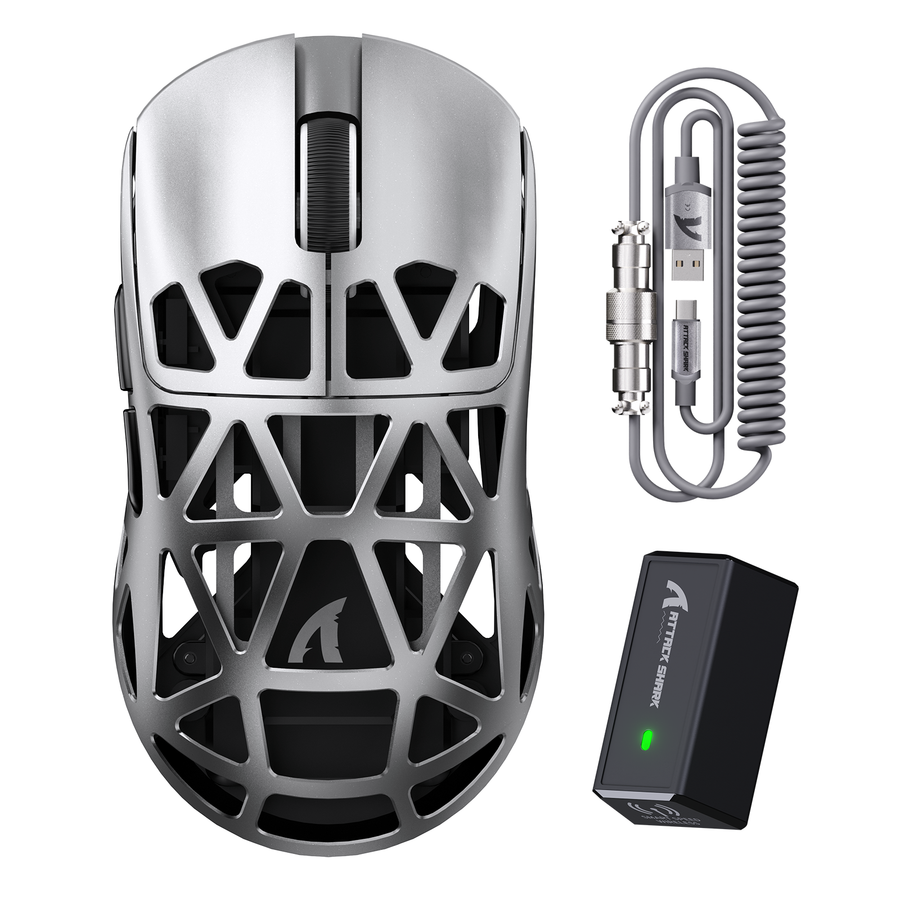
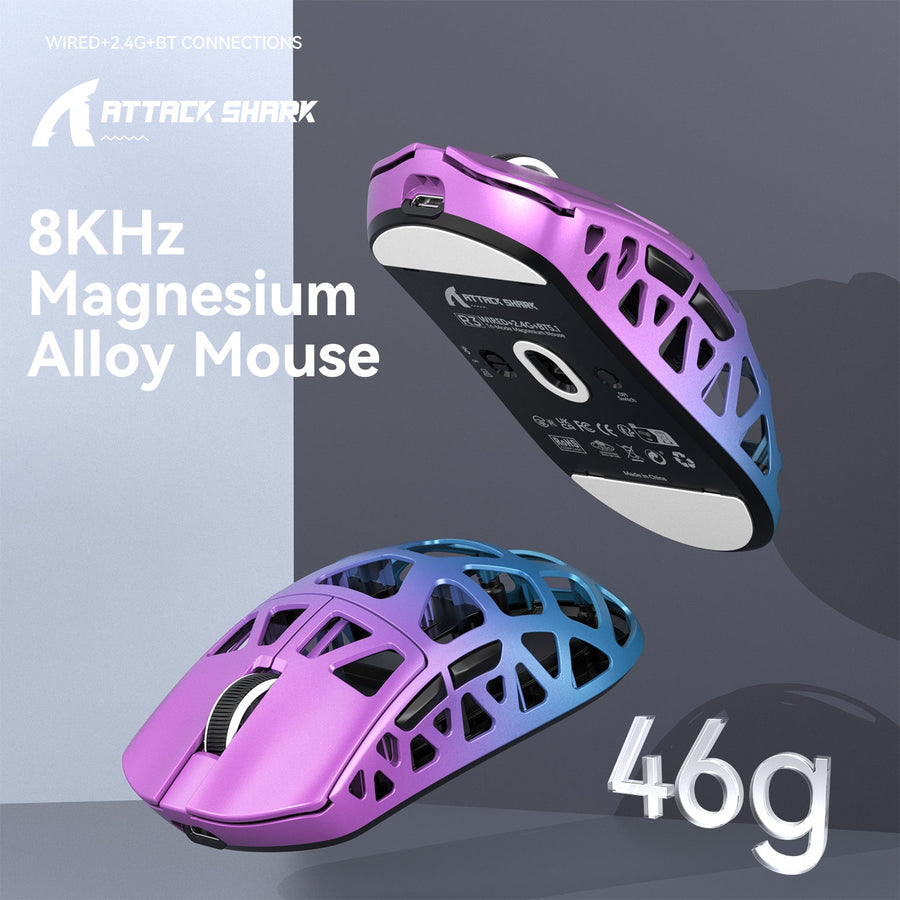
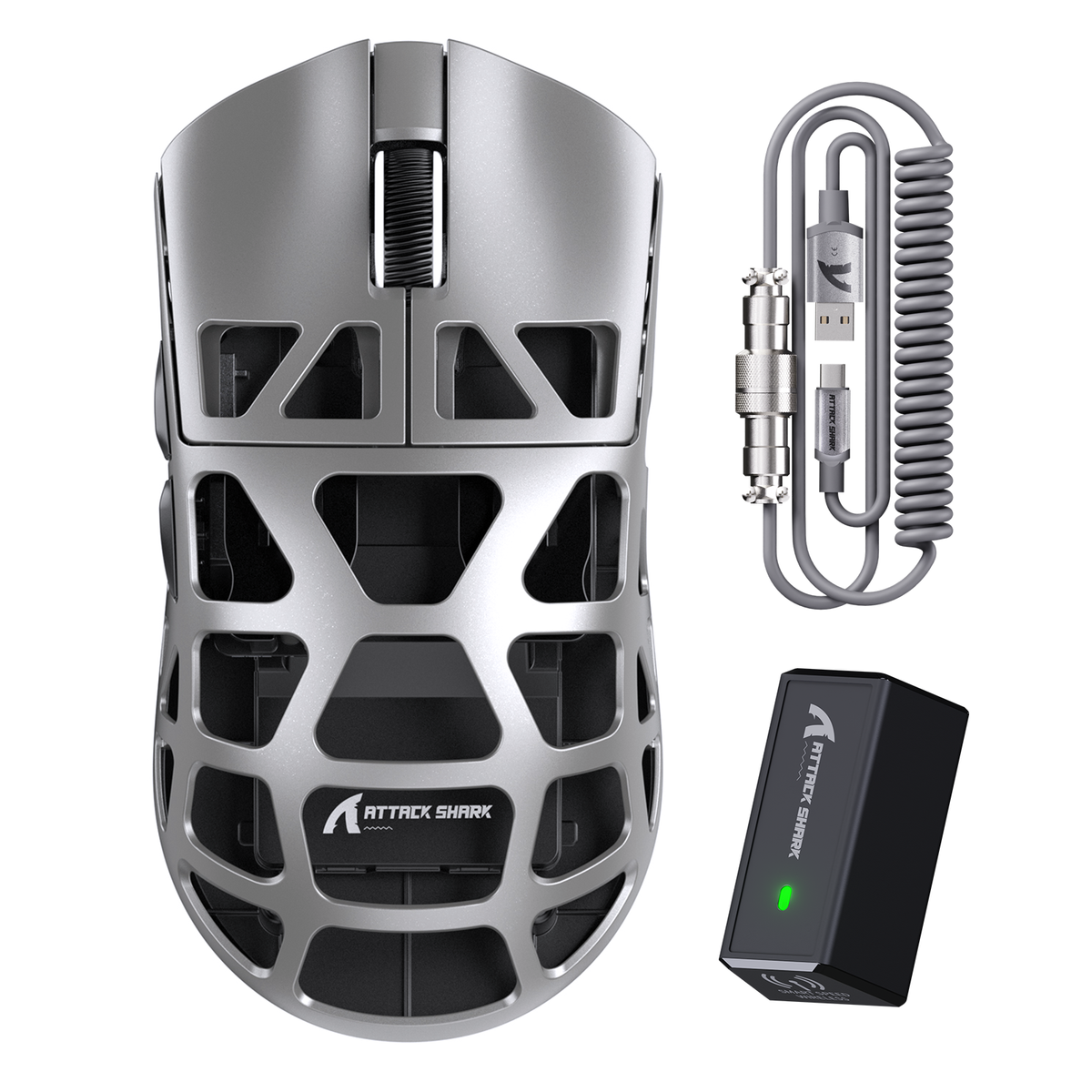
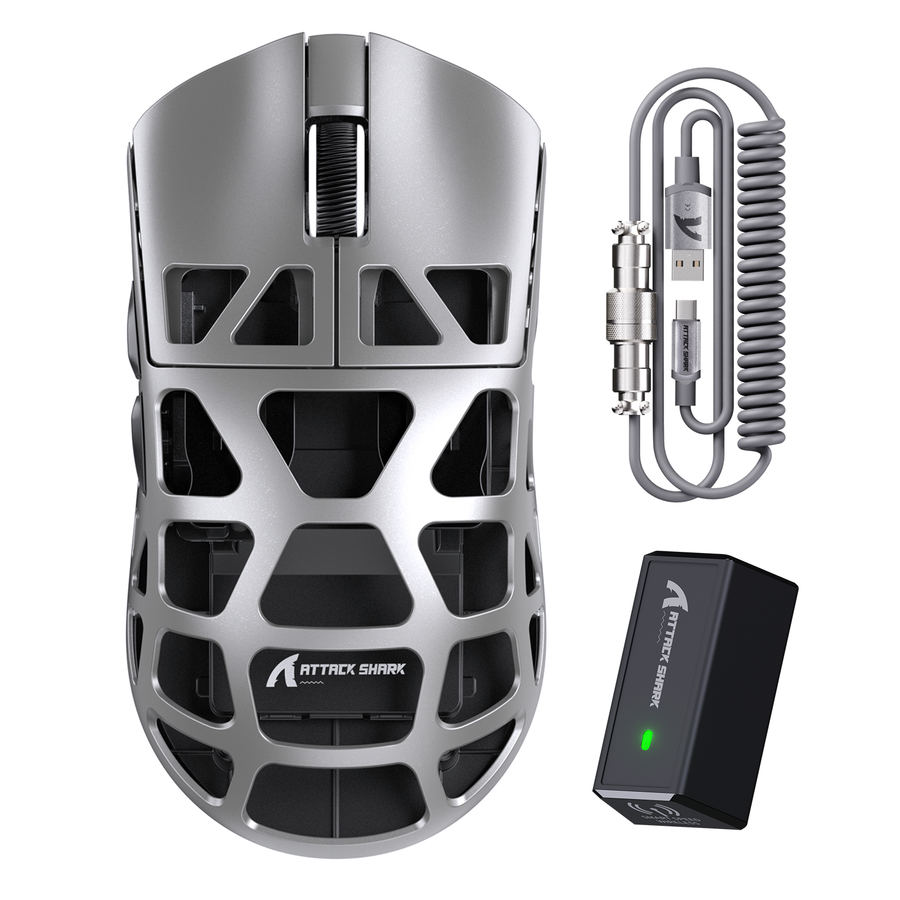
If very light handling and flexible connections matter to you, the ATTACK SHARK R3 is listed at 46g ±2g with wired, 2.4G wireless, and Bluetooth 5.2 modes, which makes it a candidate worth testing rather than a universal answer. Browse the full range of lightweight gaming mice if you want to compare options at a similar weight class.

Check Whether the Shape Stays Planted During Stops
Run your normal swipe-stop-flick sequence with the grip you actually use in matches. Watch for a shape that shifts under your palm or forces you to add extra pressure to hold your aim steady. If it does, that shape is working against you no matter how light it is. This is a handling check, not a hand-size category, so judge the whole motion rather than matching the mouse to a size chart.
Test Lift-Off and Repositioning Before Judging the Sensor
Frequent lifts make your reset behavior more important than a headline sensor spec. A mouse that resets cleanly under your own hand beats one with an impressive number on the box.
Run the Same Lift-and-Reset Test Each Time
- Swipe to the edge of your normal aiming range on your actual pad.
- Lift the mouse the distance and direction you use in real matches, then set it back down.
- Resume movement immediately and watch whether the cursor jumps, drifts, or resumes cleanly.
Repeat this cycle several times. One clean reset does not prove stability, and one bad reset does not prove failure. You are looking for a consistent pattern.
Choose Repeatable Behavior Over a Headline Sensor Specification
No universal lift-off distance number is supported here, so do not chase a specific millimeter figure from a spec sheet. Keep a mouse only if it behaves predictably through your own reset pattern on your own surface.
Remove Cable Interference and Protect Your Swipe Path
Your connection choice should respond to an actual problem, not a blanket rule. Fix the obstruction you can feel, whether that means going wireless or simply rerouting a cable.
Choose the Connection That Removes the Obstruction
In a small study of professional gamers, wireless use showed lower error rates and higher comfort ratings than wired mice, though the tested 80g-versus-87g weight difference was not statistically significant. That means wireless is worth considering when a cable is the thing dragging on your swipe, not because a small weight difference alone changes your aim. If your current cable routes cleanly and never catches during a full swipe, a wired mouse remains a reasonable choice.
Use a Four-Point Desk-Space Checklist
- Confirm your pad's usable footprint, not just its printed dimensions, matches the clear width and height you measured earlier.
- Check that your keyboard does not overlap the space your arm needs during a full swipe.
- Verify your cable route, or wireless receiver placement, stays out of your arm path at every point in the motion.
- Confirm the pad base stays planted during hard stops instead of sliding on your desk.
For players who need more physical surface, the CM04's XL carbon-fiber mousepad measures 490 × 490 mm, about 19.3 × 19.3 inches, with an anti-slip rubber base and a surface built to balance fast glides with stopping power. Treat that size as a concrete option to measure against your desk, not a universal minimum every low-sensitivity player needs. Before buying a larger pad, measure the desk area left after your keyboard is in place and confirm your full mouse path, not just the pad's advertised footprint, stays clear.
Run One Pre-Purchase and Pre-Session Setup Check
Apply the decisions above in one short sequence instead of researching each variable again from scratch.
- Measure your tested turn distance and compare it with your desk's usable travel.
- Clear keyboard, desk-edge, and cable obstructions from your swipe path.
- Pick a weight and shape based on how it feels during repeated stops and flicks, not a spec number.
- Run your lift-and-reset test on your actual pad and confirm the cursor resumes cleanly.
- Before buying, imitate several full swipes on the planned desk area and check that the intended connection route and pad footprint leave nothing to catch or shift.
Low-Sensitivity FPS Setup Decision Path
Use this as an ordered setup path, not a performance ranking: confirm physical travel first, then evaluate the mouse and desk together.
View chart data
| Category | Decision order |
|---|---|
| Measure travel | 1.0 |
| Choose weight and shape | 2.0 |
| Test lift and reset | 3.0 |
| Remove cable drag | 4.0 |
| Confirm pad clearance | 5.0 |
Once your travel, weight, lift behavior, and clearance all check out, choose the R3 for a light, multi-mode setup or use the CM04 dimensions above when pad space is the limiting condition.
FAQ
Is Low Sensitivity Always Better for Arm Aiming in FPS Games?
No. Lower sensitivity can help with harder, more precise target movements, while higher sensitivity reduces the travel needed for easier or closer targets. Test your own cm/360° and see whether your desk gives you enough room for the movement your games actually demand before assuming lower is automatically better.
Is a Lighter Mouse Always Better for Low-Sensitivity FPS?
No. A lighter mouse can feel easier to reposition, but no evidence here shows a universal weight advantage, and a shape that shifts during stops can undo any benefit from lower mass. Run your own swipe-stop-flick test before deciding weight alone is the fix.
Do I Need a Wireless Mouse for Low-Sensitivity Arm Aiming?
Not automatically. Choose wireless when a cable is the actual obstruction dragging on your swipe. A small study of professional gamers found lower error rates and higher comfort with wireless, but it did not find a significant effect from a small weight difference between mice. If your cable already routes cleanly, wired remains a reasonable choice.
Do I Need an Extra-Large Mousepad for Low-Sensitivity FPS?
Not necessarily. Compare your tested cm/360° distance with the clear desk space you actually have after your keyboard and monitor stand take up room. Use a pad's size as a fit check against that space, not as a universal requirement every low-sensitivity setup needs.