


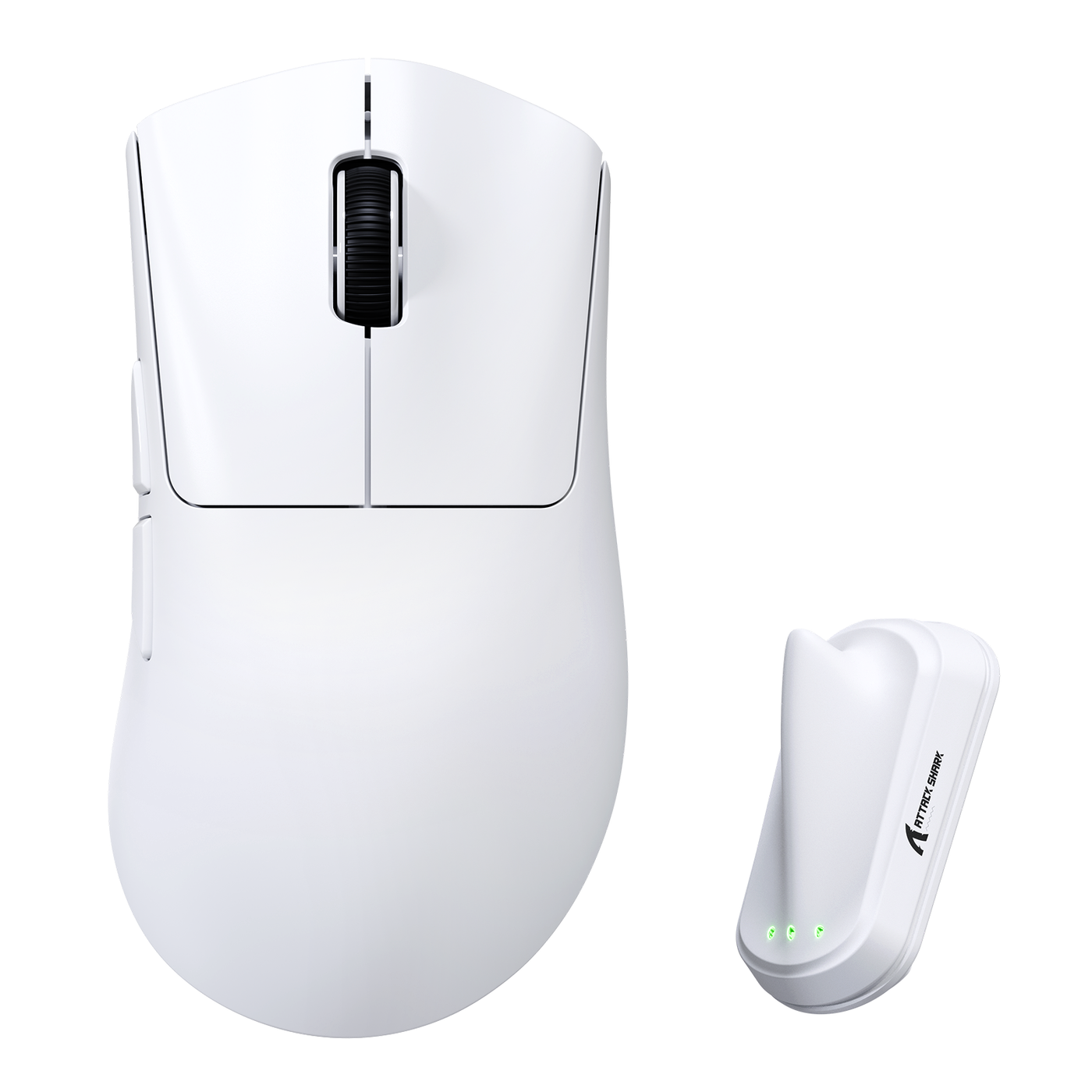
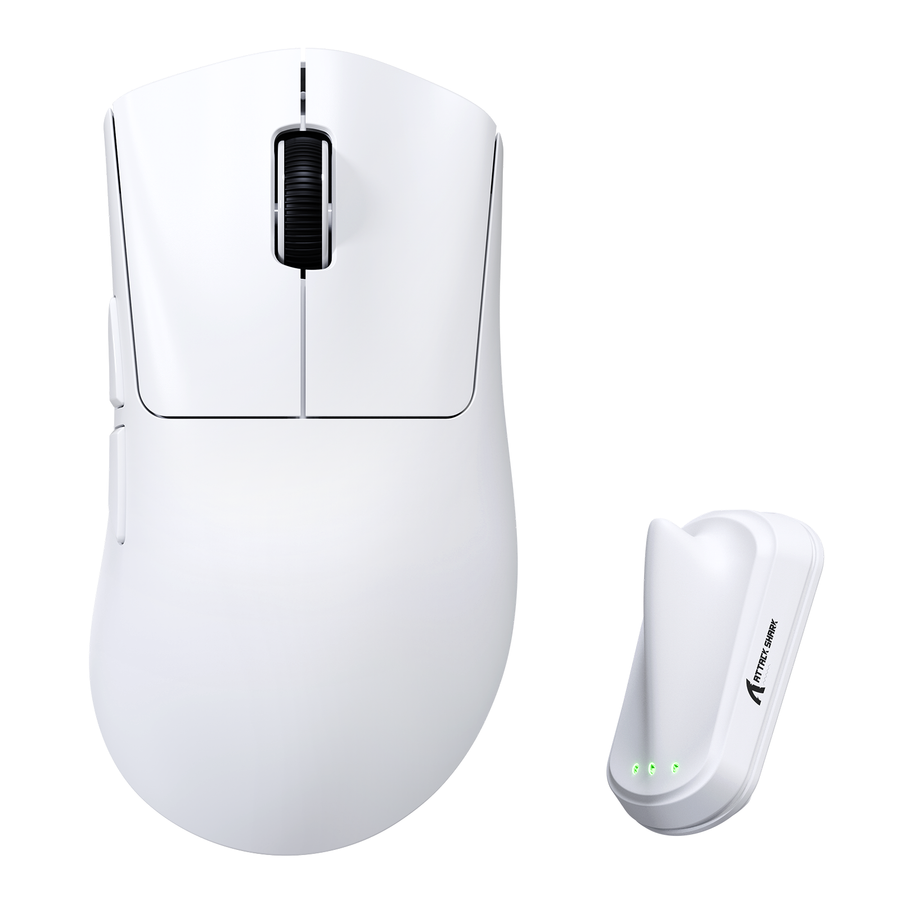
Start at 1,000Hz. Move to the next available intermediate rate when you want to test higher polling without taking on the full system or wireless tradeoff. Keep 8,000Hz only when a high-refresh competitive setup shows a stable, repeatable benefit in the game you actually play. The right gaming mouse polling rate is a setup decision—not a contest to use the largest number.

Start at 1,000Hz, then choose your gaming mouse polling rate setting
The practical choice is simple: use 1,000Hz for predictable general use, an intermediate rate as a measured compromise, and 8,000Hz as an optional test for a high-refresh competitive setup with enough headroom. This gaming mouse polling rate rule keeps the final choice tied to how your setup performs.
| Setup or priority | Start with | Keep testing only if |
|---|---|---|
| General gaming, office use, or predictable system behavior | 1,000Hz | A repeatable in-game benefit gives you a reason to move higher |
| Wireless battery convenience or simple everyday ownership | 1,000Hz | The next available intermediate rate stays smooth and fits your charging routine |
| High-refresh competitive play with limited CPU or frame-time headroom | 1,000Hz baseline, then an intermediate rate if supported | The same game remains consistent after each increase |
| High-refresh competitive play with adequate headroom | 1,000Hz baseline, then an intermediate rate or 8,000Hz | Mouse movement stays smooth, and the higher setting produces a repeatable benefit without an unwanted ownership tradeoff |
At 1,000Hz, the mouse reports nominally every 1 millisecond. At 8,000Hz, it reports every 0.125 milliseconds—a maximum interval difference of 0.875 milliseconds. That comparison describes the report interval, not an equal reduction in total input-to-display latency. This 1,000Hz versus 8,000Hz timing comparison provides useful context, but it does not guarantee better aim or higher FPS.

If 8,000Hz creates inconsistent frame times, stutter, missed input, or a charging routine you do not want, keep the last stable lower setting. The right result may be 1,000Hz or an intermediate rate.
Use your monitor and game to decide whether 8,000Hz is worth testing
A high-refresh display and a fast-paced competitive game are the strongest reasons to test above 1,000Hz, but neither guarantees that 8,000Hz will feel better on every PC. For general gaming, office work, slower-paced titles, or a system already near its limits, 1,000Hz is the more sensible starting point.
A controlled study of 240Hz and 360Hz displays found lower modeled jitter above 2,000Hz, while 1,000Hz sat near the study’s perceptual boundary. The study’s high-refresh findings support testing a higher rate, not a universal monitor cutoff or buying rule.
Match the setting to the game you actually play
Test in the competitive game and mode where rapid mouse movement matters. A desktop cursor or a slow-paced game may not reveal the same differences as an aim-intensive match. Keep the map, practice routine, graphics settings, DPI, in-game sensitivity, mouse surface, and connection mode unchanged while comparing rates.
Polling rate, DPI, and sensitivity address different configuration questions. Keep DPI and sensitivity fixed during the comparison so one change does not mask the effect of another.
Check CPU headroom through frame-time behavior
Higher polling can create more frequent mouse-input processing, and some CPU-bound situations may show worse frame-time consistency. Judge 8,000Hz polling rate and CPU usage by frame-time behavior, stutter, and playability during aggressive mouse movement—not by a fixed CPU percentage or FPS threshold.
Record the 1,000Hz baseline first. Then compare the same workload at the next available rate. Frame-time variance during aggressive mouse movement is more useful here than an idle average or the polling number shown in software. If the higher rate makes the game less consistent, it is not an upgrade for that system.
Use an intermediate rate when wireless battery or consistency matters more than the maximum
An intermediate rate is the next supported option between 1,000Hz and 8,000Hz, such as 2,000Hz or 4,000Hz when a mouse offers them. These are test points, not universal best settings. Trying the next available polling rate before jumping to 8,000Hz can preserve smoothness when the maximum creates spikes or delivers no repeatable benefit.
Choose 1,000Hz when predictable battery life, fewer charging interruptions, or uncomplicated everyday use matters more than testing a possible responsiveness difference. Choose an intermediate rate when you want to explore higher polling without committing to the highest system activity or wireless power demand.
Higher wireless polling may increase charging demands, but the effect is product-specific. Before comparing 8,000Hz wireless polling and battery life, note the connection mode, battery level, normal play time, and charging frequency. Compare the same connection mode and usage, or consult the exact model’s documentation. Do not apply a universal runtime estimate to every mouse. If wireless convenience is your priority, you can browse wireless mice after identifying the setting you can realistically keep.
An intermediate rate can be the final setting. You do not need to progress to 8,000Hz if the lower rate remains smooth, useful, and easier to live with.
Test each higher rate in the same game before you keep it
The shortest reliable test starts at 1,000Hz and changes one variable at a time. Use this sequence:
- Set 1,000Hz and record a baseline. Note frame-time consistency, visible smoothness, input feel, and, for a wireless mouse, the battery state and normal charging behavior.
- Choose one repeatable game scenario. Use the same map, practice routine, or encounter. Keep graphics settings, DPI, sensitivity, connection mode, mouse surface, and unrelated-app load unchanged.
- Increase one available polling step. Move to the next supported rate rather than jumping directly to 8,000Hz. If the mouse offers 2,000Hz or 4,000Hz, treat those as comparison points rather than targets.
- Compare actual behavior. Watch frame-time consistency and stutter during aggressive movement, then assess input feel and visible smoothness. For wireless use, record charging behavior under comparable play conditions.
- Keep or revert based on repeatability. Keep the highest rate that remains smooth, stable, and convenient and provides a benefit you can reproduce. If persistent stutter, missed or inconsistent input, crashes, or another material instability appears, stop and revert to the last stable setting.
This procedure answers whether high polling rate gaming mouse settings help your actual setup. It does not assume that a higher number must feel better, and it gives 1,000Hz or an intermediate rate a valid final result.
Shop for the mouse that supports the setting you will actually keep
Choose shape and connection type first, then confirm the exact model’s supported polling modes. An 8,000Hz-capable mouse does not require you to use 8,000Hz, so do not accept a battery or stability tradeoff solely for the headline specification.
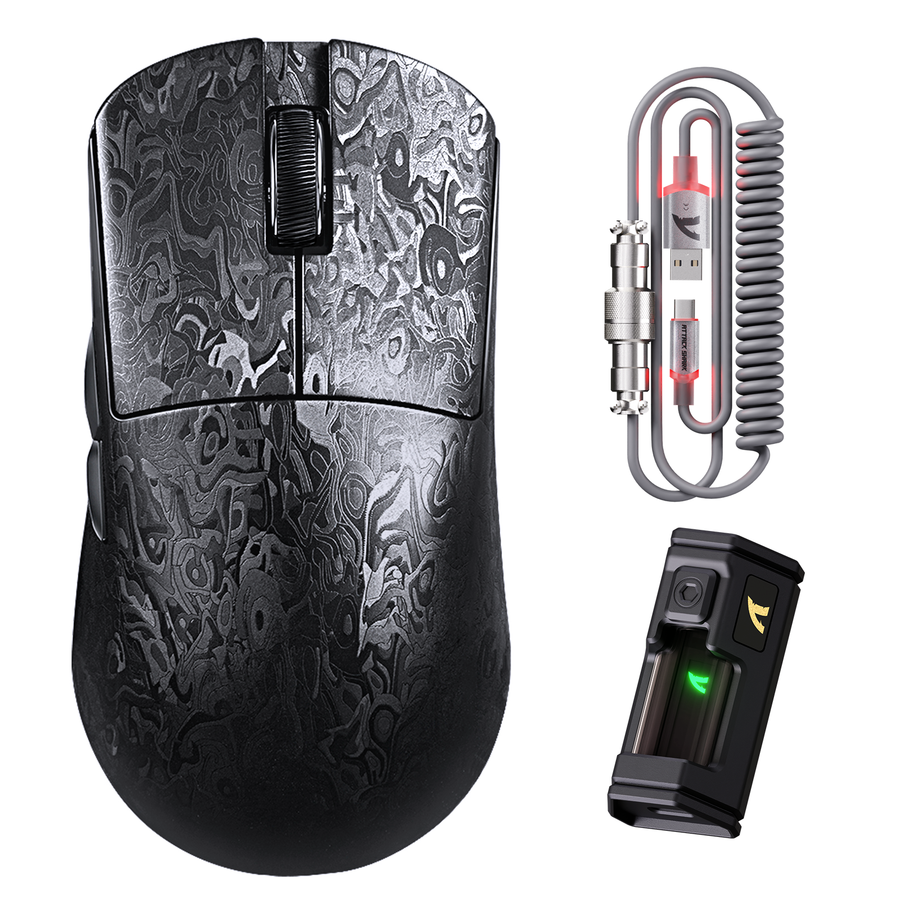
For a right-handed ergonomic option, the V8 wireless gaming mouse is listed at 59g ±3g, uses tri-mode connectivity, and supports 8,000Hz in wired and wireless modes. Its listed use cases include FPS, esports, and fast-paced PC gaming, but those facts do not establish that every player should use the maximum rate.
The X8 tri-mode gaming mouse requires model-level checking. X8Ultra and X8Ultimate list 8,000Hz options; X8PRO lists wired 1K plus wireless 8K; X8PLUS and X8SE list 1,000Hz. The series should not be treated as having one uniform polling configuration.
For a lightweight tri-mode option, the R3 8K gaming mouse is listed at 46g ±2g, with a magnesium-alloy frame, an up-to-8,000Hz polling rate, and 8,000Hz wireless polling. The supplied facts do not establish a universal wired 8,000Hz mode, so check the exact connection specification.
Start at 1,000Hz, test upward in the game that matters, and shop only for the shape, connection, and supported polling modes that match the setting you can keep.
Frequently Asked Questions
These answers apply the same test-first rule to common buying and setup questions.
Do I need 8,000Hz polling for gaming?
No. Most readers should start at 1,000Hz and move higher only when a high-refresh competitive workload gives them a reason to test. Try an intermediate rate before 8,000Hz if the maximum is inconvenient, then keep the setting that remains stable and useful in the actual game.
Does 8,000Hz polling increase CPU usage?
It can increase the frequency of mouse-input processing, but the practical effect depends on the PC and workload. Compare frame-time consistency and stutter against your 1,000Hz baseline rather than relying on a fixed CPU or FPS claim. If movement becomes less consistent, lower the rate.
Does 8,000Hz polling reduce wireless mouse battery life?
It may increase charging demands, but the amount depends on the mouse and connection mode. Compare charging frequency under the same usage, or consult the exact model’s documentation, before making 8,000Hz your everyday wireless setting.