


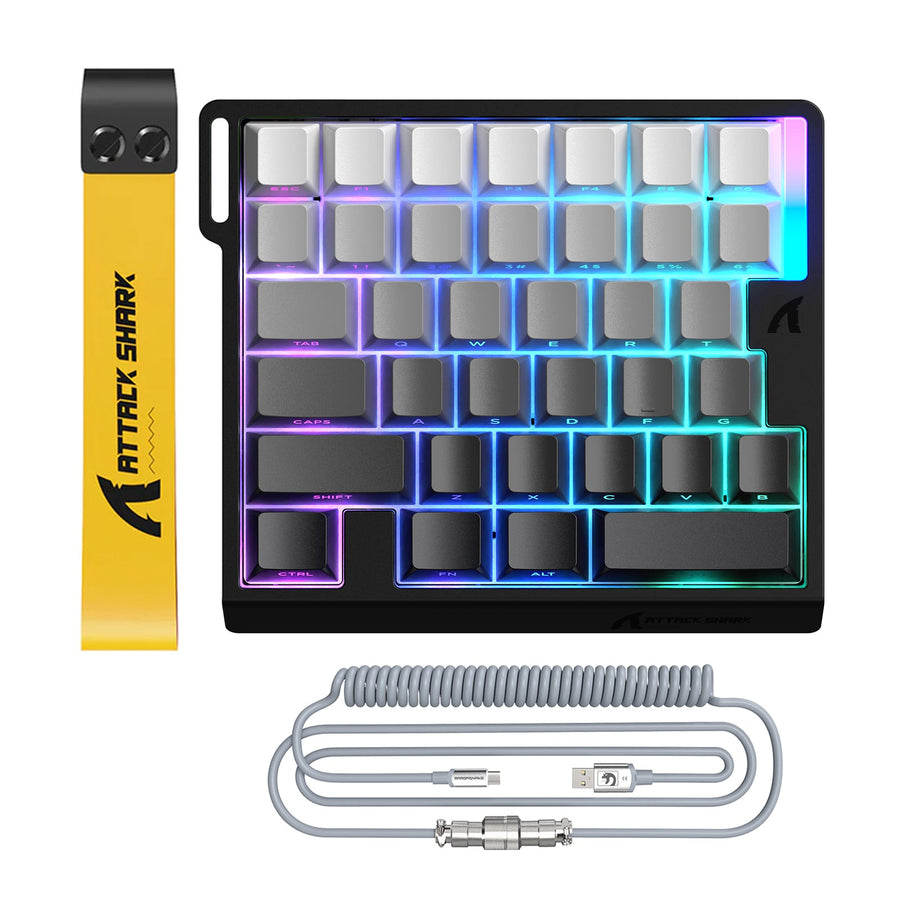
Comparing gaming keyboard software before you buy means judging the whole support workflow, not just the feature list on the box. Check the official download path, whether the utility detects your exact model, which controls you actually need, how settings are stored, whether you need a browser or a desktop app, and what happens if firmware updates go wrong. Gaming keyboard software is only worth the install if those six things check out. This guide walks through each one, then helps you decide whether onboard memory or a software-dependent setup fits how you actually use your computer.

Run a Six-Point Software Due-Diligence Check Before Buying
A keyboard's software ecosystem is worth trusting only when you can confirm six things before checkout. If any of them are missing or vague, treat that gap as an open question rather than a green light.

- Official download path. Find the exact model listed on the maker's official keyboard support page before you download anything. A generic "compatible" utility from a search result is not the same as a model-matched file.
- Device detection. Confirm the documentation states which connection type, browser, and operating system the utility supports, and that it explains what device detection should look like when everything works.
- Everyday controls. List only the features you need, such as remapping, macros, lighting, actuation tuning, or profile switching, and check that your model's page documents each one you care about.
- Storage behavior. Find out which settings save to the keyboard itself and which only work while the software is installed and running.
- Tool type. Check whether browser configuration and desktop-only functions are clearly separated, since one does not guarantee the other.
- Firmware and recovery. Look for a firmware version, prerequisites, and a documented way to recover from an interrupted update.
Proceed with confidence when the exact model, your required controls, storage behavior, tool requirements, and recovery steps are all documented. If a similarly named utility shows up instead of your exact model, do not assume it is a confirmed match. That gap is a reason to pause, not a detail to skip.
Compare Onboard Memory with Software-Dependent Features
Choose documented onboard memory when settings must remain usable after you close the utility or move between computers. Choose software-dependent features when the controls you need require the tool and you accept ongoing access and maintenance; for each function, check whether the tool must stay open or is needed only to apply or manage it.
| Decision question | Onboard memory | Software-dependent features |
|---|---|---|
| Do settings work after closing the tool? | Yes, for whatever the exact model documents as stored | It depends on the function; check whether the tool must stay open or is needed only to apply or manage the setting |
| Switching computers? | Exact-model documentation must confirm that the stored settings can be used with the keyboard | Settings that are not stored onboard may need to be reconfigured or managed with the compatible tool |
| Access to advanced controls? | Limited to what the keyboard stores onboard | Full access to whatever the software offers |
| Ongoing maintenance? | Lower once settings are saved | Higher, since updates and reinstalls affect functionality |
What Onboard Memory Can and Cannot Prove
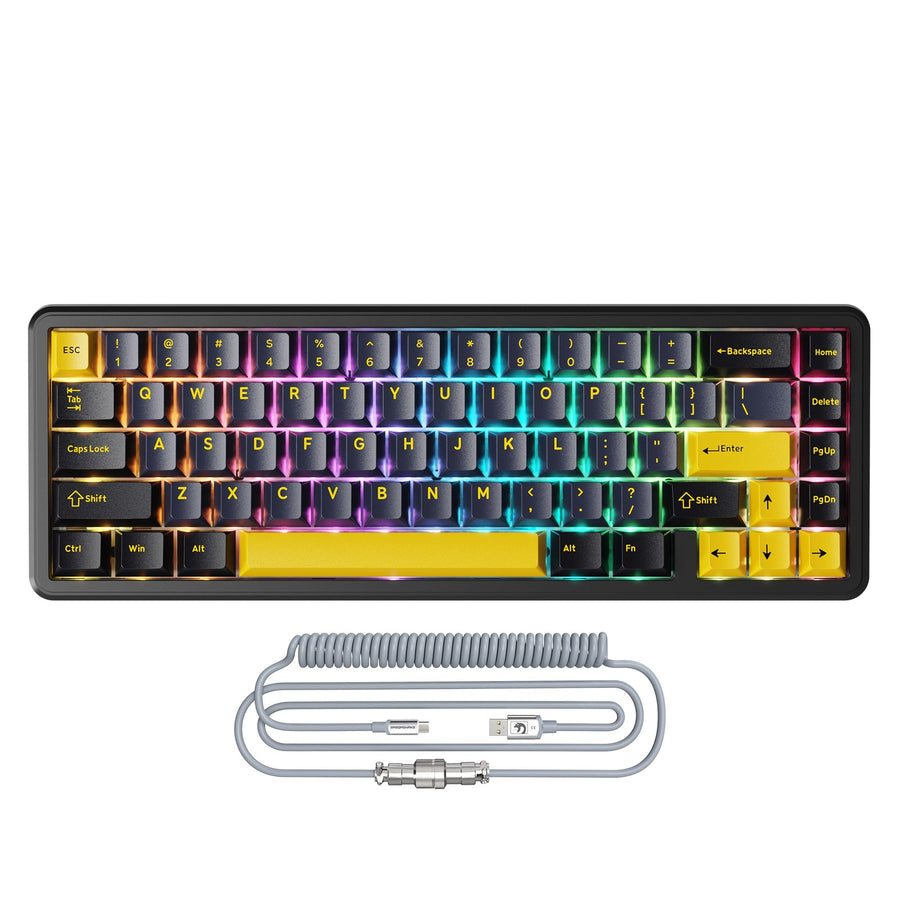
Onboard memory only proves which settings the keyboard documents as stored. Our M36 HE keyboard lists a web-based driver with real-time preview alongside onboard memory, which is a useful bounded example of this kind of setup. That combination does not by itself prove that firmware updates, integrations, or every profile function works without the software; confirm the specific stored settings and profile behavior for your model before counting on a software-free workflow.
When Software Dependence Is the Better Fit
Software-dependent controls make sense when the features you need are not documented as onboard-stored and you are fine keeping the tool installed. If you move between computers often or want your core settings to survive without the utility running, documented onboard persistence is the better fit. Match the choice to how you actually use the keyboard, not to which option sounds more advanced.
Choose Browser-Based or Desktop Tooling by Task
Pick browser tooling when it explicitly covers your setup, and plan on desktop software when updates or integrations are documented as desktop-only. The right call depends on the task, not on which type of tool sounds simpler.
Use Browser Tooling for the Tasks It Actually Supports
A browser-based driver can be attractive for basic configuration when it recognizes your device and covers the settings you need, since there is nothing to install. That convenience does not automatically mean it also handles firmware updates or account for every advanced function; browser access covers configuration, not the full software lifecycle.
Plan for Desktop Software When the Task Requires It
Some functions, like certain firmware updates or third-party integrations, may only be documented for a desktop utility. Desktop-only updates or integrations mean you must plan for the utility rather than rely on a browser-only workflow. Weigh the extra installation and maintenance against how much you actually need those functions.
Check the Platform Boundary Before Checkout
Confirm the exact keyboard's supported browser, operating system, connection method, and whether the tool must stay open in the background. If you plan to try macros or advanced key sequences, our macro programming guide walks through how that kind of configuration generally works. A missing platform statement for your model is an open compatibility question, not a settled fact either way.
Check Firmware, Troubleshooting, and Recovery Support
A keyboard is easier to commit to when its firmware and recovery documentation for your exact model is complete. Treat a documented recovery path as a purchase-confidence signal, and treat missing instructions as a real maintenance risk if firmware updates matter to you.
Verify the Update Path Before You Need It
Look for a firmware version and update path, along with any prerequisites like a wired connection or minimum tool version. Keep the interruption guidance with those instructions so you know what to do if the process stops.
Look for Troubleshooting That Starts with Detection
Good support explains what to do if the keyboard is not recognized, the utility will not open, or the connection drops mid-update. Look for model-specific troubleshooting steps rather than relying on generic workarounds that may not apply to your keyboard.
Require a Recovery or Reset Path
A support ecosystem worth trusting explains how to reset the device, recover from a failed update, and reach support if the standard process fails. If firmware maintenance matters to your use case and that recovery information is missing, treat it as a real gap that should factor into your purchase decision, not a minor omission.
Install and Update with a Trust-First Workflow
Reduce avoidable software risk by starting from the source, not a search result, and by keeping your update environment controlled. This is a general hygiene workflow, not a claim that any specific utility is safe or unsafe.
Start with the Source, Not a Search Result
Avoid installers reached through unsolicited emails, ads, or third-party mirrors. If a link did not come from the official support domain, return there before you install or update anything.
Keep the Update Environment Controlled
Use supported software versions and, where possible, a stable and trusted network when installing firmware or software updates. This lowers avoidable risk during the update process, though it is not a guarantee against every possible compromise or failed update.
Review Permissions Without Overclaiming
Check the utility's documented permissions, network access, and privacy notice when that information is available. As the CISA guidance on patches and software updates recommends, download only from trusted vendor sites, visit them directly instead of clicking email or ad links, and avoid updating on untrusted networks when possible. If permissions or privacy details are not published, treat that as a transparency gap to weigh, not proof that the software behaves unsafely.
Match the Software Burden to Your Setup
The right software model depends on how many computers you use and how much ongoing maintenance you are willing to accept. Use the checks above to sort yourself into one of three common scenarios.
If You Use More Than One Computer
Favor documented onboard persistence or a browser workflow that covers your needed settings without repeated installs. Your next step is confirming exactly which settings and profiles the exact model stores onboard before you buy.
If You Want Every Advanced Control
Accept desktop or recurring tool dependence only when the required controls, updates, and integrations are documented for your exact model and platform. Confirm those lifecycle functions are actually listed before checkout, not assumed from a similar model.
If You Want the Least Maintenance
Choose the simplest documented browser or onboard-memory workflow available, and treat unclear recovery or permissions information as a reason to pause. For the next step, use our official driver download resource to find the files and manuals available for your setup.
Choose onboard memory or a browser-first workflow when you want less software maintenance and the documented features cover your needs. Choose desktop-dependent features when their advanced controls justify the ongoing access, updates, and setup. If storage, platform, permissions, or recovery details remain unclear, treat that uncertainty as a purchase limitation and resolve it through the official support resources before buying.
FAQs
Is Gaming Keyboard Software Safe to Install?
Generally yes as a workflow when the file comes from the maker's official support domain and matches your exact model, but official hosting alone does not verify every utility's safety, privacy, or current file integrity. Follow direct-download and update hygiene, and stop to double-check the source if the file path or model match looks unclear.
What Is the Difference Between Onboard Memory and Software Profiles?
Onboard memory stores supported settings on the keyboard itself, so they can stay available without the utility running. Software profiles depend on the compatible browser or desktop tool to apply or manage them. Confirm the exact stored settings and profile behavior for your model before assuming the keyboard works fully without software.
Do I Need to Keep Gaming Keyboard Software Running in the Background?
Not always. If your settings are documented as stored onboard, the utility may not need to stay open for those to work. Software-managed controls, updates, integrations, or settings that are not saved to the keyboard can still require the browser or desktop tool to remain active.