


A coiled gaming mouse cable can make your setup feel cleaner, but it is not automatically lower-drag. Pick it when cable wandering or slack is the actual problem and your measured reach, tension, and connector fit line up.

Does a Coiled Mouse Cable Reduce Drag?
A coiled cable helps only when the specific problem is cable wandering, desk-edge contact, or loose slack, and the coil's relaxed reach still covers your full mouse movement. It is not a universal upgrade over a straight cable.

When a Coil May Help
A coiled gaming mouse cable is worth testing when:
- Your current cable wanders across the desk or catches on the edge during normal sweeps.
- You have loose slack that a coil could gather into a shorter, controlled span.
- You can place the anchor close enough that the coil stays relaxed through your full movement area.
The benefit comes from the anchor position and relaxed reach, not from the coil shape by itself. If those two things are not right, a coil can feel worse than the cable it replaced.
When Straight or Unchanged Is Better
Skip the coil in these cases:
- A straight cable suits a clean, direct run from mouse to computer with enough natural slack and no catching.
- No change is right when your current cable already moves with the mouse without pulling, catching, or running short.
If neither wandering nor unwanted pull shows up during normal play, a cable swap is not solving a real problem.
How Coil Tension, Reach, and Anchoring Change Mouse Feel
Cable contact and coil pull are different problems with different fixes. A cable may stop rubbing the desk while its coil still pulls on the mouse when the setup stretches or misaligns it.
Cable Contact Is Not the Same as Coil Pull
A cable can feel intrusive simply because it rubs against the desk or catches on an object during a swipe. That is a contact problem, and a coil can sometimes fix it by lifting the cable off the surface. A stretched coil is a different issue. When the coil is pulled past its relaxed length, it acts like a spring and tugs the mouse back toward the anchor point, even if the cable never touches the desk. You can have low contact and still feel real resistance if the coil is doing this.
The Variables That Change the Feel
Three setup details decide which symptom you get:
- Anchor distance and height: an anchor placed too far or too low forces the coil to stretch during normal reach, producing pull.
- Relaxed coil orientation: a coil pointed against your natural movement direction resists sooner than one aligned with it.
- Full mouse travel and contact points: check the whole path your mouse crosses, not just the resting spot, since a coil that looks relaxed at rest can still stretch at the far edge of your pad.
Measure Usable Reach for Your Desk and Sensitivity
Measure the real path from your anchor point to the farthest spot your mouse actually reaches, not the cable's advertised length. Trace bends around the desk edge and likely contact points as part of that measurement.
The table below is a scenario guide, not a fixed spec. Use it to check which movement profile matches your setup before you compare cable options.
| Desk and sensitivity scenario | Movement profile | What to prioritize |
|---|---|---|
| Compact desk, standard sensitivity | Short, frequent movements near center | Enough slack to avoid catching on desk edges without excess coil length |
| Standard desk, standard sensitivity | Moderate travel across a mid-size pad | Balanced relaxed reach that covers the pad without visible coil stretch |
| Low sensitivity, wide travel | Broad sweeps across an XL surface or full desk | Maximum relaxed reach at the farthest point, since low sensitivity increases how much of the pad you use, a pattern covered in more depth in our guide to low-sensitivity arm aiming |
To measure your own setup:
- Mark the anchor point where the cable will connect to your computer or a fixed clip.
- Trace the path to the farthest position your mouse reaches during normal play, following any bends around the desk edge.
- Confirm that a candidate cable's relaxed, uncoiled reach covers that traced path with slack left over, not just barely touching it.
Check Connector Fit Before You Buy
The plug must physically match your mouse's port and housing, seat cleanly without force, and support the exact connection you need. A USB-C label alone does not confirm any of that.
Check the Mouse End First
- Identify the port shape and plug geometry your mouse actually uses.
- Check that the plug housing clears the mouse shell and sits in its natural orientation once inserted.
- Do not force a plug that will not seat cleanly. If it needs pressure or sits at an angle, treat it as a mismatch.
Confirm the Complete Connection
- Verify the cable's intended function rather than assuming a USB-C label means full interchangeability. USB-C plug reversibility does not guarantee device compatibility: the spec covers reversible orientation, not whether a given cable works with every device.
- Confirm the host-end connector matches your computer or dock.
- Confirm the cable is meant for the wired connection your mouse requires, not just a similar-looking port.
Do not buy or use the cable if the device-end plug does not seat cleanly, interferes with the mouse shell, or requires force to connect.
Place and Test the Cable Before Committing
Test the cable across your full movement range before you decide to keep it.
- Place the anchor so the cable reaches the mouse without a sharp, forced bend.
- Let the coil sit relaxed at the center of your normal movement area.
- Sweep the mouse across its full range, including the farthest points you use in play.
- Watch for stretch, redirection, or the cable hitting its limit during that sweep.
- If the coil pulls or stops your movement early, move the anchor or switch routing styles before committing.
Check the Shop Product Against Your Measured Setup
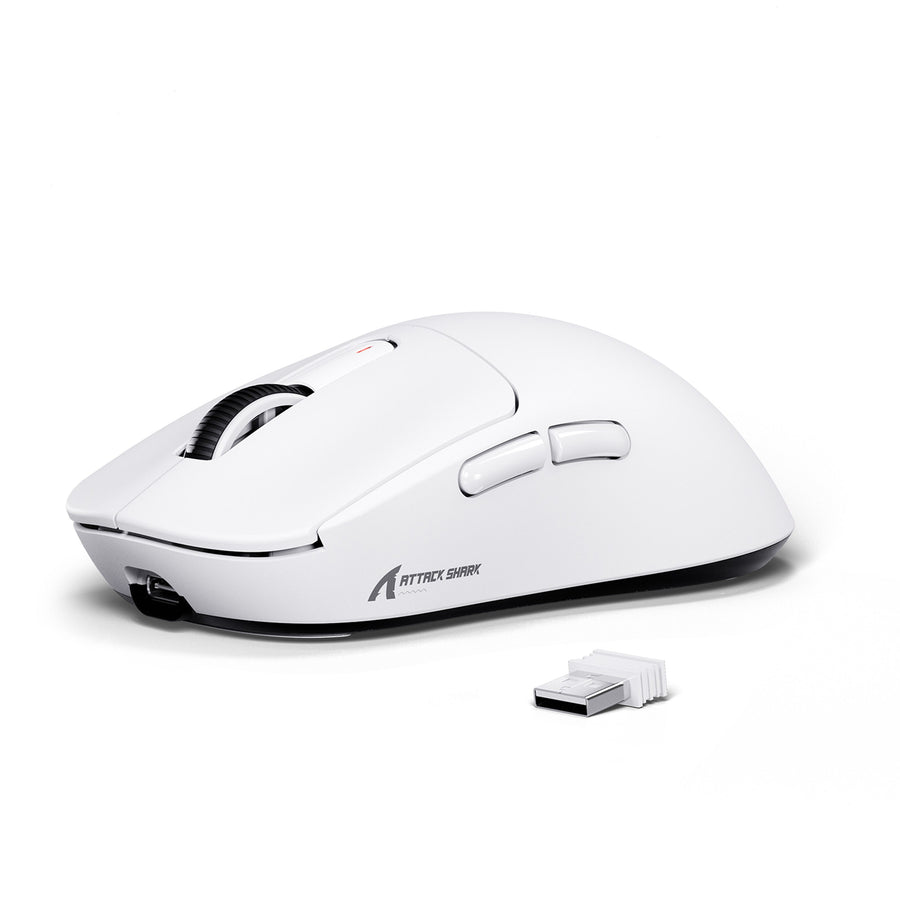
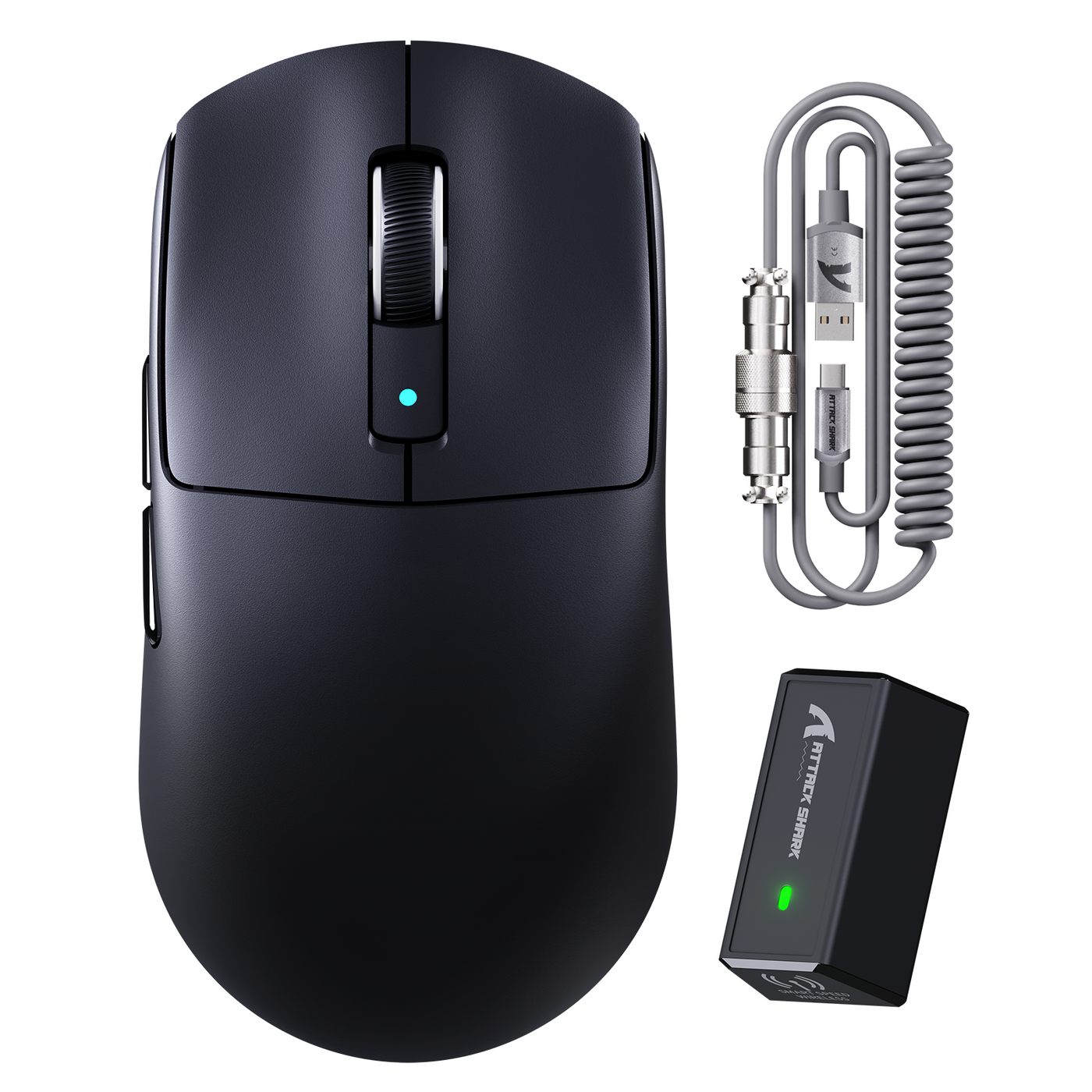
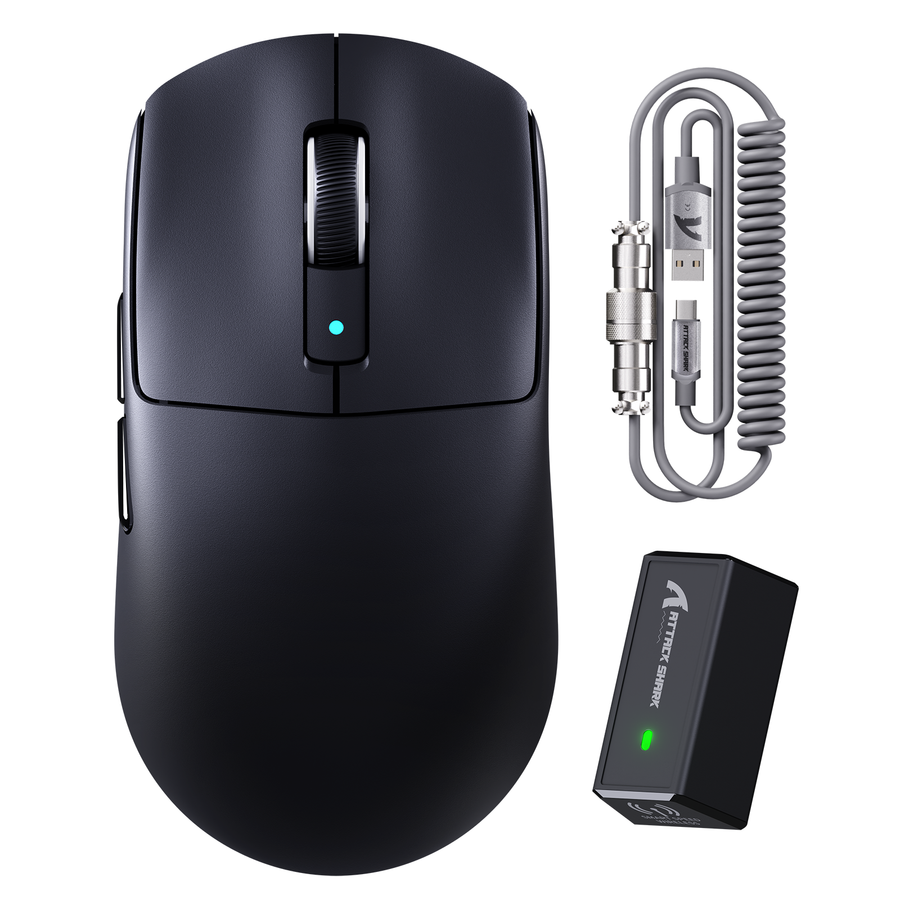
Once you have your measured reach and connector checks done, you can compare them against a specific listing. Our ATTACK SHARK R6 LIGHTSPEED Wireless Gaming Mouse with C06 Mouse Coiled Cable is listed with wired, 2.4G, and Bluetooth 5.2 connectivity.
That listing confirms the R6's own connectivity modes, but it does not document the C06 cable's exact length, connector geometry, or tension for use with other mouse models. If you are trying to add a coiled cable to a different mouse, treat this listing as one wired-connectivity reference rather than proof of fit for your specific device. Use it as your starting option only after your device-end connector and measured reach checks confirm a match; otherwise keep comparing it against your own numbers before ordering.
The setup benefit comes from controlled routing, relaxed movement, and a clean connector fit. Choose a coiled gaming mouse cable when those checks match your desk; choose a straight cable or keep your current setup when it already moves naturally. Confirm the connector and usable reach before you commit.
FAQ
Do coiled mouse cables reduce drag?
They can reduce wandering or desk contact in a suitable layout. The useful test is whether your chosen routing stays comfortable during normal movement.
What cable length should I choose for a low-sensitivity mouse?
Measure from the intended anchor to the farthest position you use, then select relaxed reach that covers the traced path with room to spare. Compare your measurement with the cable's usable reach, not its advertised length alone.
Can any USB-C cable work with a gaming mouse?
No. The plug shape is only one check. Port geometry, housing clearance, cable function, and the host-end connector must also match.
How can I tell whether my coiled cable is pulling on the mouse?
Release the mouse during normal movement and watch for self-directed movement, visible coil stretch, or an early cable limit. If you see one, move the anchor or change the routing style.